














Step-by-step guide to set up your eero Whole Home WiFi

Get connected in minutes. Use this simple step-by-step guide to set up your Whole Home WiFi.
Before you get started
Think about where you will use the internet the most: the modem and router should be placed as close to this location as possible (Learn how to self-install your modem).
- If you are using the internet over a large area, try to centralize the modem and eero Base in the home for optimal service throughout.
- Place the eero Beacons within 30 ft of the base upon setup. Once setup, you can experiment with placement to ensure coverage where you most often use internet.
- Final placement of the Beacons should be halfway between the Base and any dead zones in the home.
Learn more: How many eeros do I need?
Create an eero Account
- Go to your app store and search for the eero Whole Home WiFi System application.
- Locate the app and press Install.
- Once the app has installed press the Open button.
Upon first opening the eero mobile app, you will be prompted to create an eero account through a guided setup process.
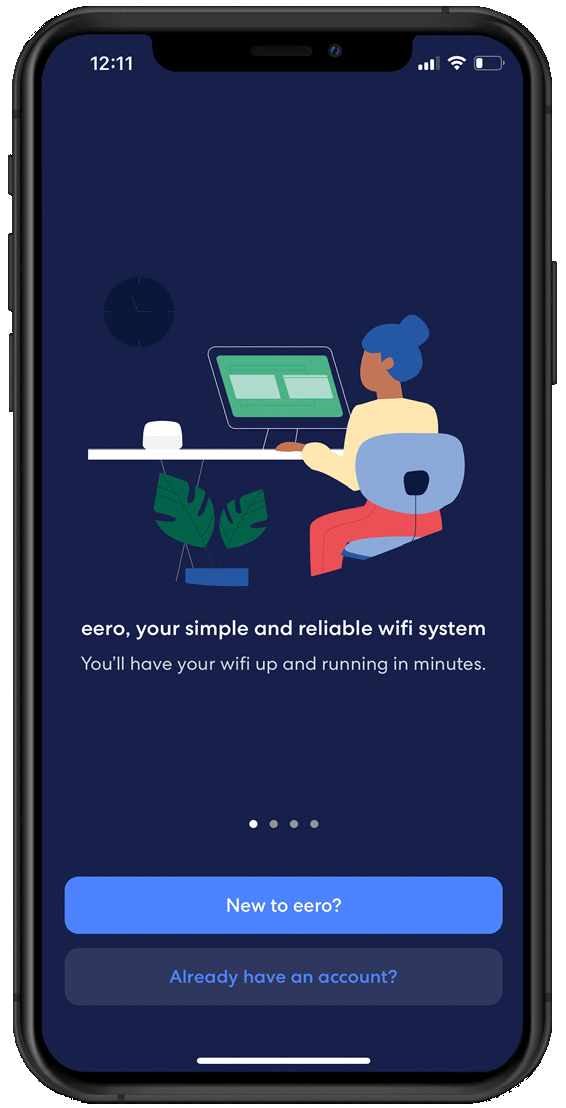
STEP 1
Open the app is open, tap the New to eero? Button.
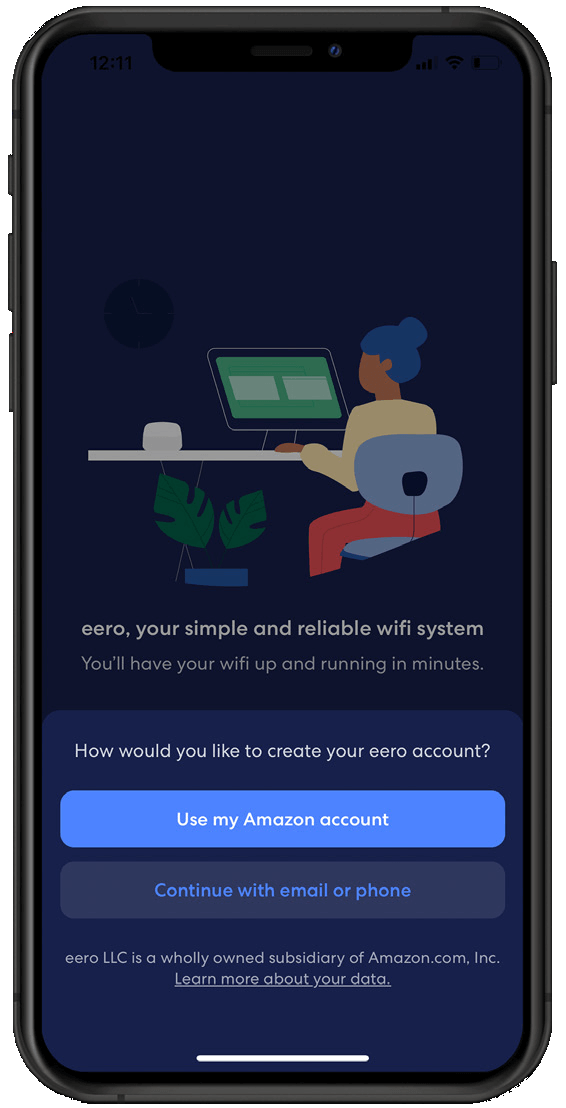
STEP 2
Log in with your existing Amazon account or create a new eero account with your email or phone.
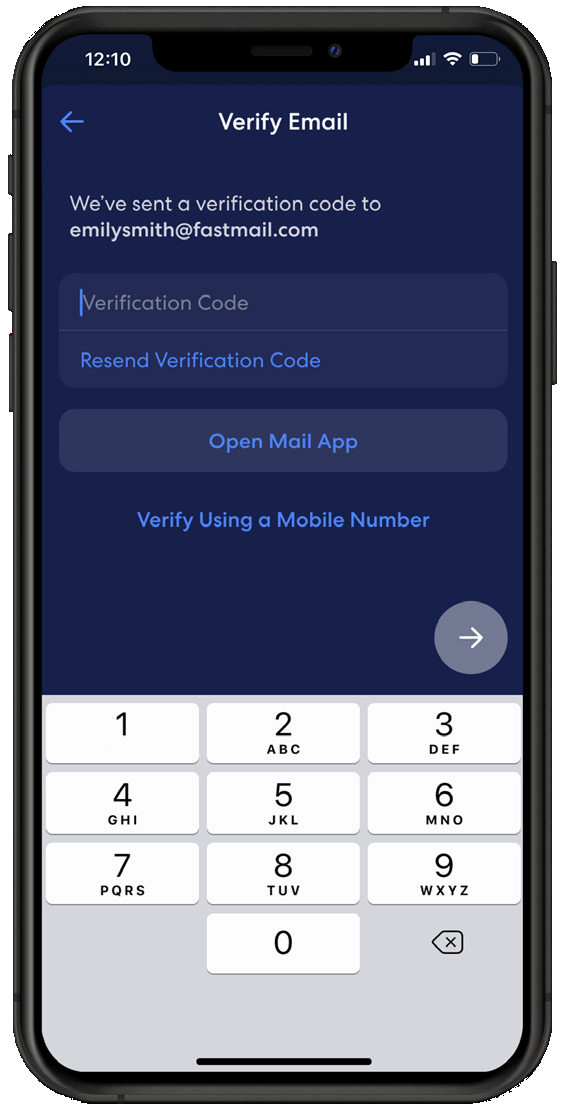
STEP 3
If creating a new account, enter in the verification code sent via SMS or email.
Network Setup
Your gateway is the primary eero device connected to your modem and is needed to establish your network. The eero mobile app will guide you through setting up your eero gateway in the following steps.
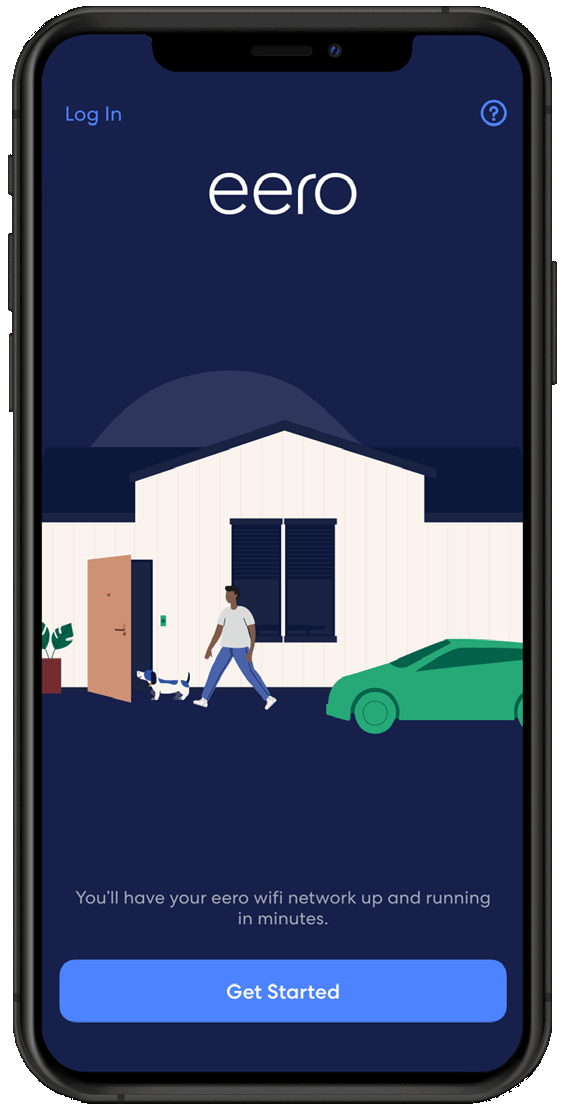
STEP 1
Tap Get Started.
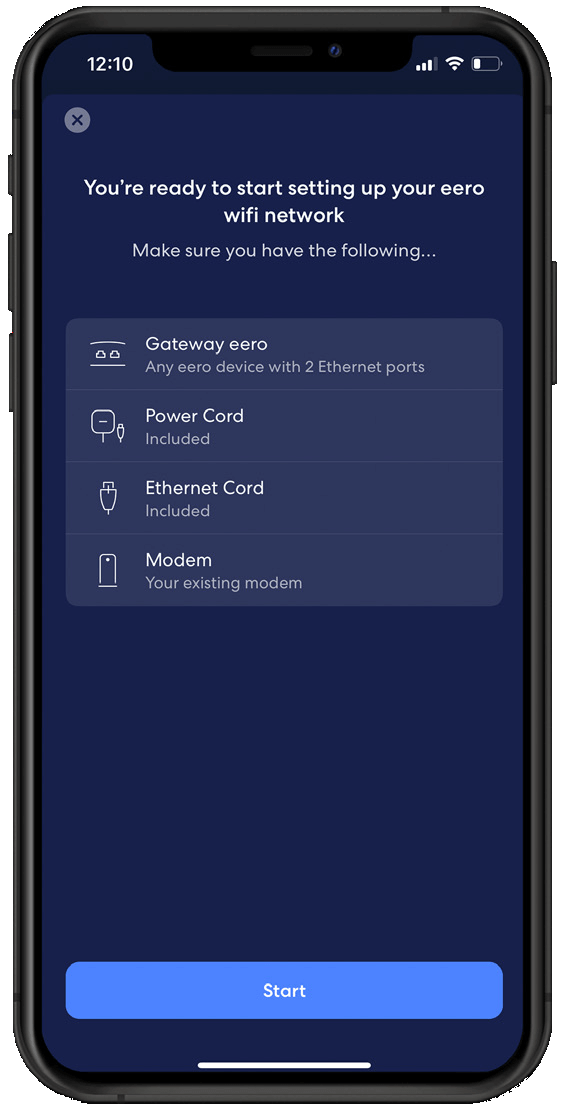
STEP 2
Confirm you have the listed items and tap Start.
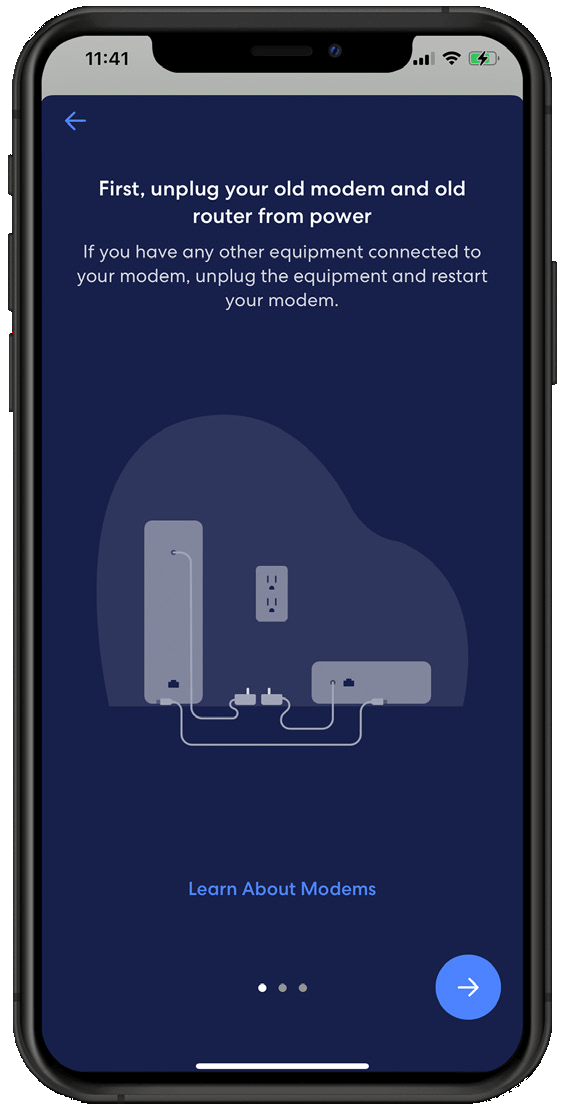
STEP 3
Disconnect your old modem and router from power, then tap the Blue arrow.
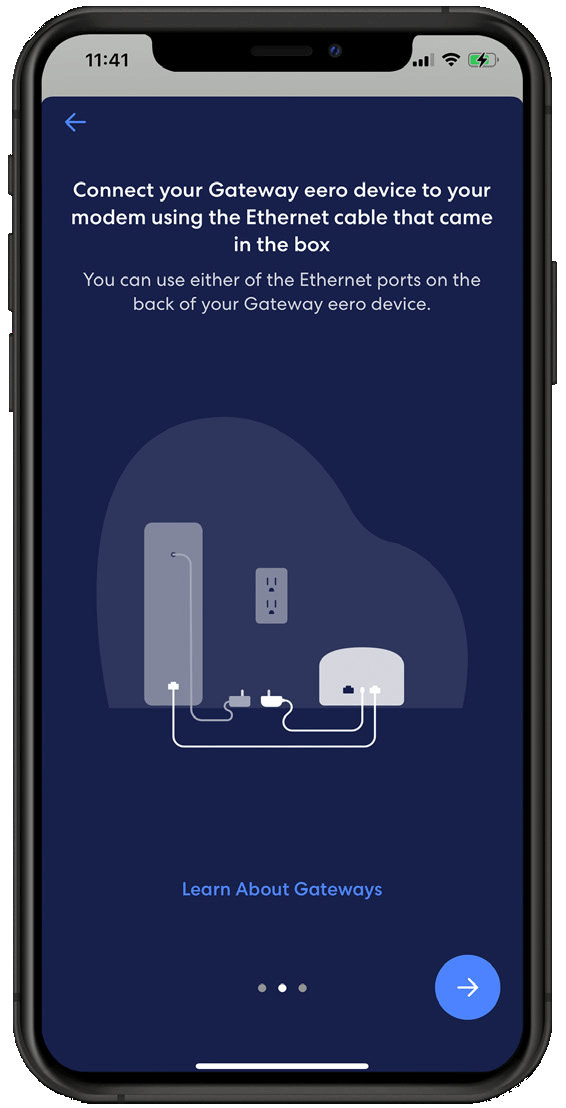
STEP 4
Connect your eero gateway to your router using the provided Ethernet cable and tap the Blue arrow.
STEP 5
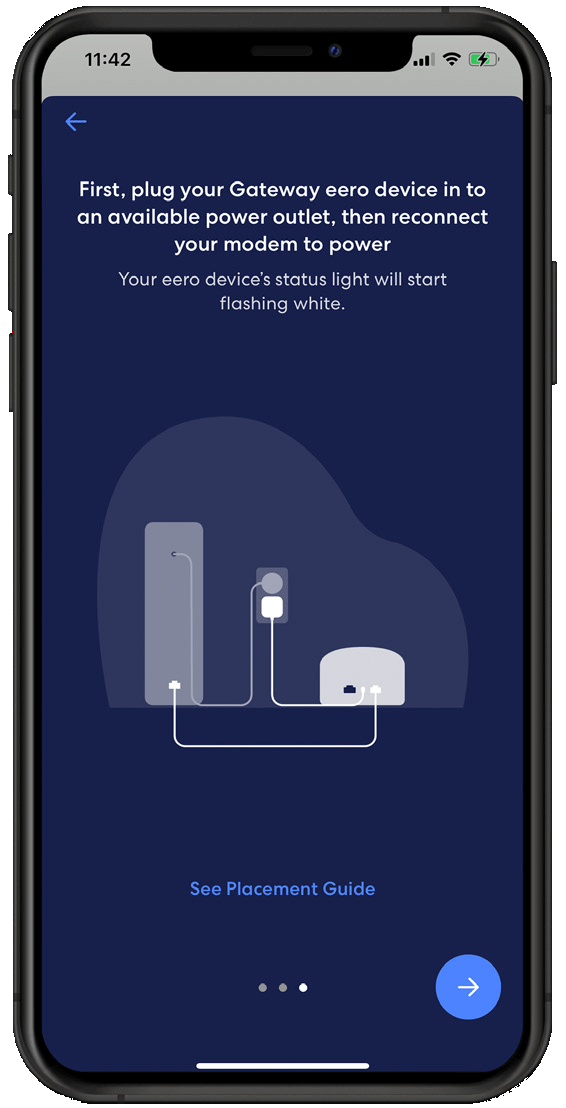
Plug your eero gateway into power, then plug your modem into power, and tap the Blue arrow.
STEP 6
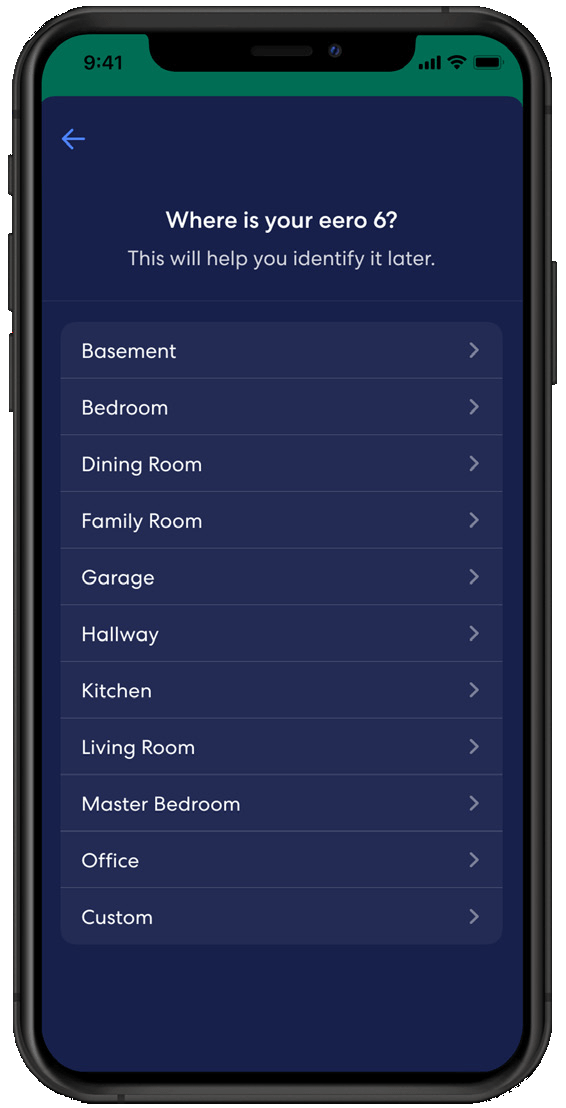
Once your eero gateway is recognized, choose a location for your device.
STEP 7
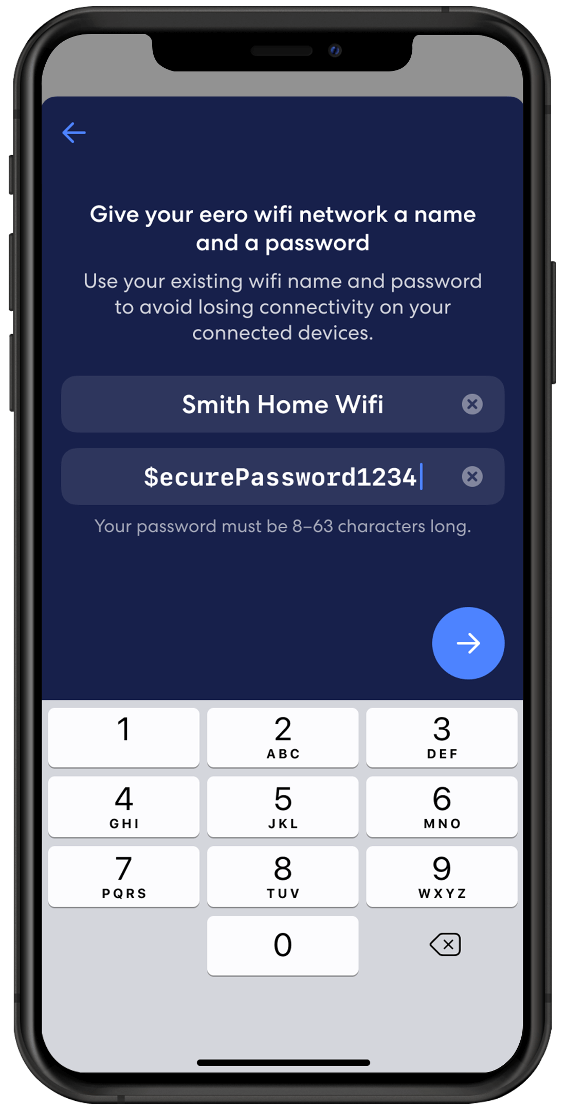
Create a name and password for your wifi network, then tap Blue arrow.
STEP 8
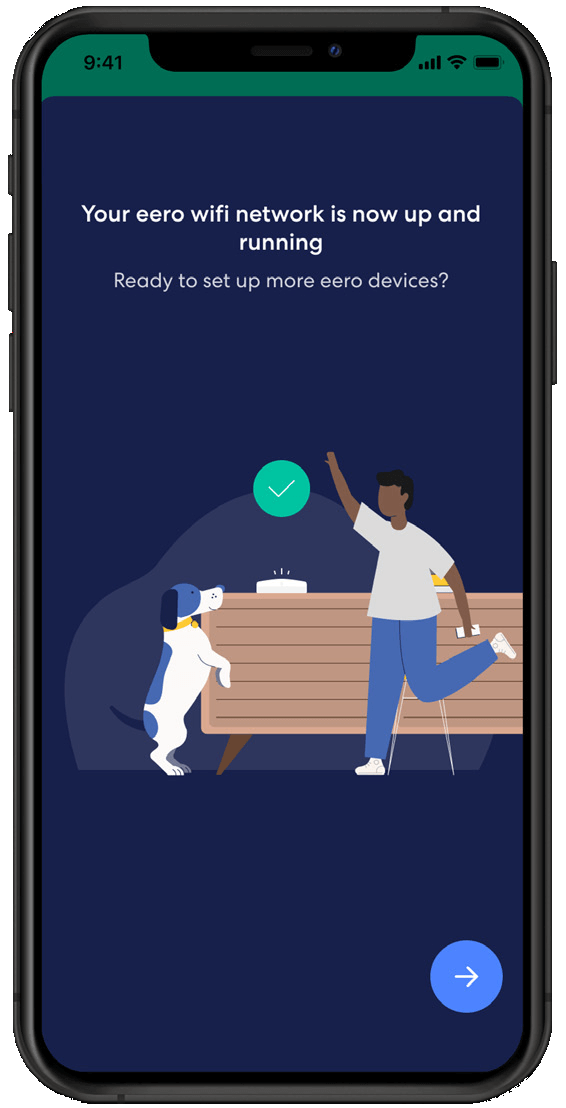
Once your receive the confirmation of a successful setup, tap the Blue arrow.
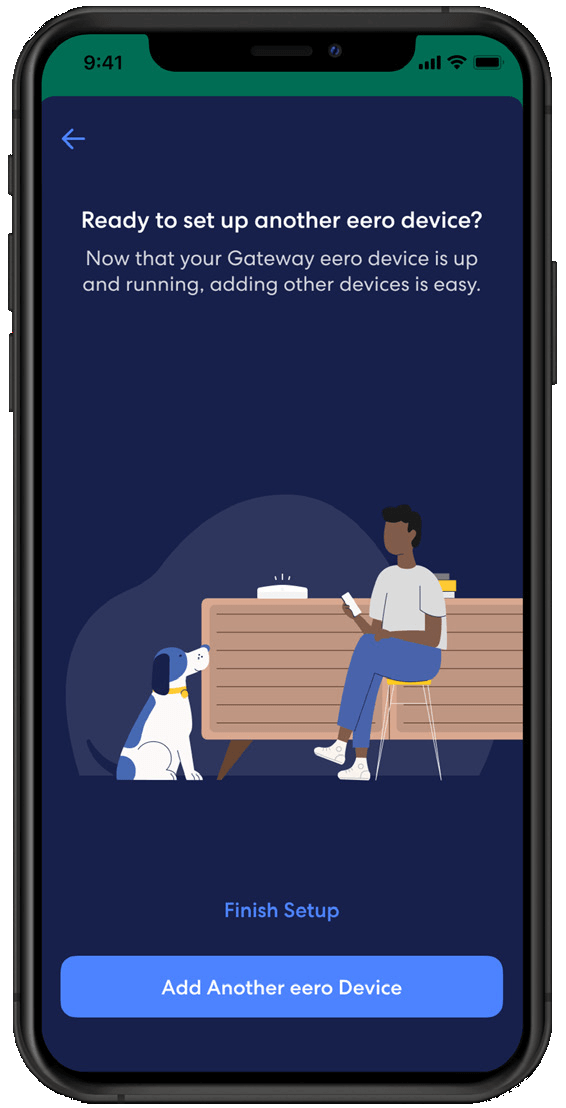
STEP 9
If you are done setting up your network, tap Finish Setup, or select Add Another eero Device to add additional devices.
You’ve now completed all the steps and your Whole Home WiFi is connected and ready to go! For further setup details or to keep a copy for future reference, you can download the Whole Home WiFi Quick Start Guide:
If you need assistance after your installation, please don’t hesitate to contact us at 1-800-427-8686 or astound.com/support; our customer service agents are available 24 hours a day, 7 days a week.
most popular resource
Optimize your internet speed
Is WiFi interference slowing your internet speeds? Here are a few tips to optimize and maximize your home’s high speed internet performance.

Quick links


Looking for something else?
Check out Astound Support Center for all help and support related information.
*Internet speeds vary, not guaranteed. Certain equipment may be required. See astound.com for details. Modem req’d. No contracts. Astound Internet is powered by fiber and connected to the premises via coaxial connection or fiber, where available. Delivery methods may vary by area. Subject to availability. Ltd-time offer; subj. to change without notice. Internet speeds under 1 Gig, pricing valid for 12 mos. Gig+ Internet speeds, pricing valid for 36 mos. Add’l fees apply for taxes, surcharges, & data overages, & are subj. to change. For details visit astound.com/fees. Enhanced WiFi or Whole Home WiFi included with Gig+; $5/mo for lower speeds or add’l devices. Regular rates apply after promo ends. Monthly price shown includes discount for enrolling in autopay & e-bill. $10 off/mo w/ bank acct autopay or $5 off/mo w/ credit/debit card autopay. Valid email & enrollment req’d. Must enroll w/in 30 days of order. Discount appears within 3 bill cycles, ends if autopay/e-bill is canceled, svcs change, or acct isn’t in good standing. ^Astound Mobile req’s Astound Internet service for activation. Max 5 lines. Equip., intl./roaming charges, taxes, fees extra & may change. Astound not liable for svc disruptions or outages. Higher rate applies if Internet not maintained. Mobile svc only in Astound areas. Pricing subj. to change. Data may slow during congestion. After 20GB, Unlimited plans slow to 768 Kbps; 1.5GB/3GB plans capped. No rollover; add’l data $10/GB. Coverage varies. Some features may require specific plans. Mobile svc includes BIAS w/ data, voice, texts & SMS. Other restrictions may apply. See astound.com/mobile for details. Offer valid for new res. customers or former customers in good standing w/out Astound svc in past 60 days. Add’l svcs, equip, premiums & tiers extra & subject to add’l charge & reg. increases. $14.99 one-time activation fee (plus install) applies & may change. Taxes & surcharges extra & subj. to change. WA RESIDENTS: unless otherwise specified, price does not include 2% Regulatory Administration Fee. Cust. responsible for any accrued charges. Subj. to credit check. Not all svcs/speeds avail. in all areas. 30-Day Money-Back Guarantee for new residential customers who cancel within 30 days of install. Maximum refund is equal to one month’s monthly recurring service fee of services & equip. ordered & installed. Refund within 60 days after conditions are satisfied. Refund not applicable to usage-based fees. All svcs are governed by Astound Customer Terms & Conditions found at astound.com/policies-disclaimers. © 2026 Radiate HoldCo, LLC d/b/a Astound Broadband. All rights reserved.