














Managing parental controls with eero Plus content filters
eero Plus delivers comprehensive parental controls that help parents ensure a safer online environment for their children. With features like content filtering, family profile management, and screen time controls, parents can set age-appropriate restrictions and monitor daily usage. Advanced security tools in eero Secure and eero Plus also safeguard against cyber threats, while ad-blocking enhances browsing safety and speed.

Key Takeaways:
- eero Plus offers customizable parental controls and family profiles.
- Content filtering blocks explicit or risky sites by age category.
- Screen time limits and scheduled pauses help balance device usage.
- Real-time threat blocking and ad blocking further protect the home network.
While the internet is an invaluable source of education, entertainment and communication, parents must ensure a secure online environment for their children. Multiple online threats, including inappropriate content, online predators and excessive screen time, make monitoring home network traffic more critical.
Fortunately, eero’s parental control settings offer solutions to manage internet access with features such as:
- Content filters (via eero Secure and eero Plus) to block access to inappropriate websites.
- Family profile management for personalized restrictions per profile.
- Time management to monitor and track screen time.
- Real-time threat blocking.
- Ad-blocking capabilities to block unnecessary ads.
Read more: Is eero Plus worth it?
Global CyberSecurity Forum published a report in 2022 that found that 72% of children globally have experienced some type of cyber threat. As internet access grows, implementing parental controls is essential to minimize children’s exposure to harmful content while fostering healthy internet habits.
WiFi that just works!
WiFi plans for any home
Tiny, large or somewhere in between; find WiFi coverage to fit any space. Blanket your entire home with a fast and ultra‑reliable connection.
eero’s parental control features
eero’s parental control features let parents filter content, set screen time limits and monitor online activities. Some of the parental control features include:
Family profile management
Through the eero mobile app, parents can create and manage individual user profiles to apply age-appropriate personalized settings and restrictions.
For example, young children’s profiles can have content filters to block explicit content and limit screen time. In contrast, teenagers’ profiles can have limited access to social media while enabling SafeSearch for filtered search results.
Parents can then monitor their children’s real-time activity via the Activity tab. This dashboard reports daily and weekly time spent online, the apps and sites visited and blocked attempts when a child tries to access restricted content.
Content filtering
Content filtering lets parents block specific websites automatically by applying pre-set filters for age-appropriate restrictions (pre-K, pre-teen or teen) or manually filtering content based on various categories. These categories include:
- Adult content
- Illegal or criminal activities
- Violent content
- Social media
- Streaming services
- Chat and messaging
- Games
- Streaming platforms
- Shopping
The content filtering feature also enables SafeSearch and YouTube Restricted Mode for all profile-associated devices, automatically filtering out explicit content in search results.
Time management
Parents can set screen time limits for their children’s profiles, ensuring they don’t overuse the screens when it’s time for homework, bedtime or family time.
They can also set scheduled pauses at designated times, whereby they manually pause WiFi access for specific devices, for example:
- Homework mode: Pauses internet access for two or three hours when it’s time to study.
- Dinner time pauses: Ensures kids are not distracted during meals.
- Bedtime mode: Prevents late-night internet scrolling or gaming sessions that can interfere with sleep.
Advanced security features
Beyond parental controls, eero Secure and eero Plus provide additional security features that maximize the security of your home network. These extra features include:
Advanced content filtering
Parents can allow or block individual sites on the network or specific profiles that content filters might otherwise miss based on their category. By entering the URLs of the websites, they have more control over which sites their children can or cannot access.
Additionally, parents can block or allow access to individual apps per profile. They can search for the app or select from a list of apps to block or allow.
Real-time threat blocking
eero Secure and eero Plus provide active real-time threat protection to secure your home WiFi by blocking access to known malicious sites and protecting users from phishing attacks, scams or malware. eero Plus provides Malwarebytes, an anti-malware feature that scans and removes malware, viruses, spyware and ransomware from connected devices in real-time.
Ad blocking capabilities
Ad block lets parents block ads on connected devices, reducing the risk of children encountering and clicking on malicious ads that could pose security threats. The ad-blocking feature also improves the browsing experience by minimizing distracting ads and improving website load times.

Mesh WiFi with
eero Secure
Enhanced Whole Home WiFi uses multiple routers (or eeros®) to boost range, speed and stability—while eero Secure, included at no extra cost, offers parental controls, ad blocking and internet backup for constant connectivity.
Setting up eero parental controls in your app
Create your profiles
Create different profiles for your family members in the eero app by following the instructions below:
- From the Home tab, tap on Add a profile in the Profiles section.
- Enter the name of the person for whom you’re creating a profile.
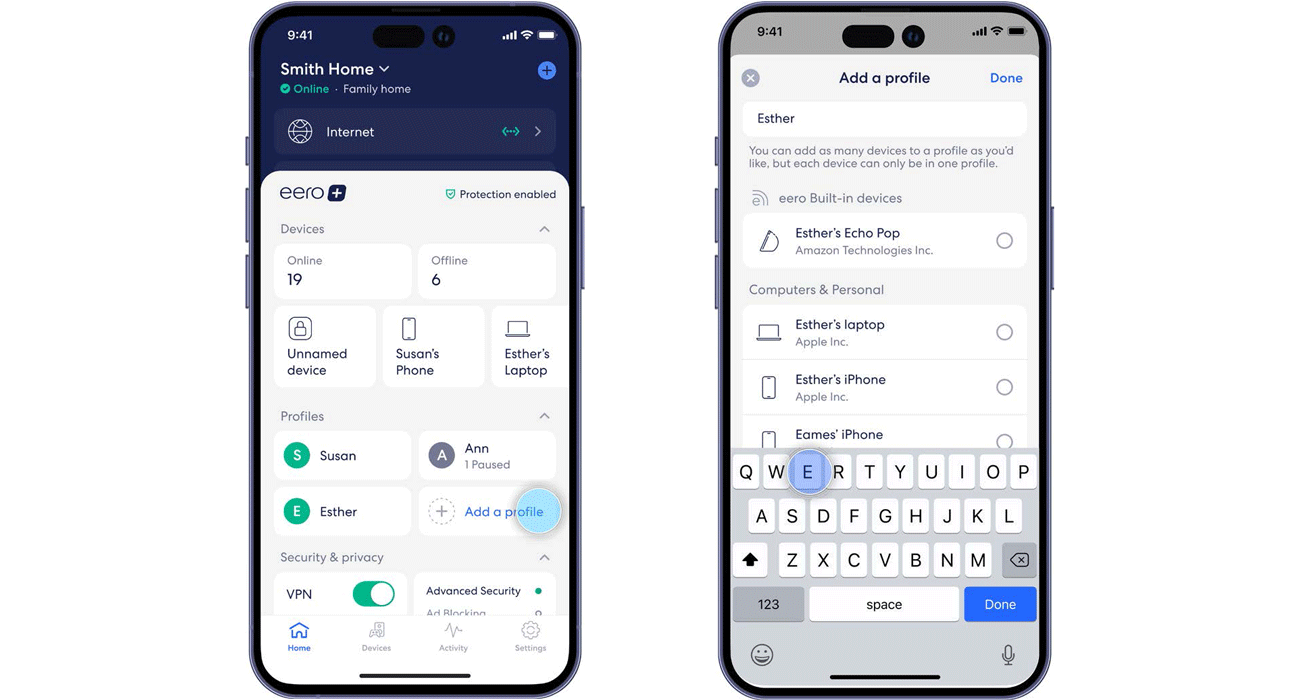
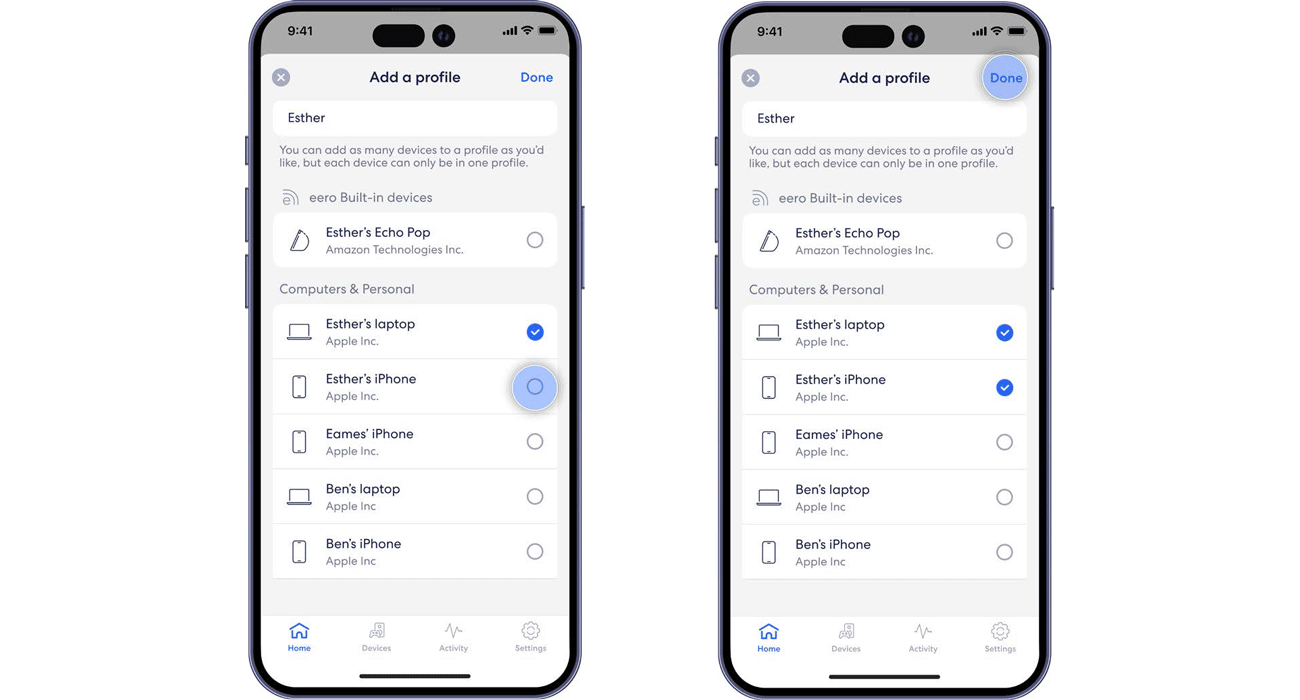
- Tap the circular icon to the right of each connected device to select the devices you want to add to the profile.
- Tap Done at the top right corner of the screen when you’ve selected all the devices you wish to include.
Set up content filters
You can set up content filters in the eero app through the homepage or from an individual profile.
From the Home tab:
- Under Security & Privacy, tap on Advanced Security.
- Select Network Controls.
- Select Content Filters.
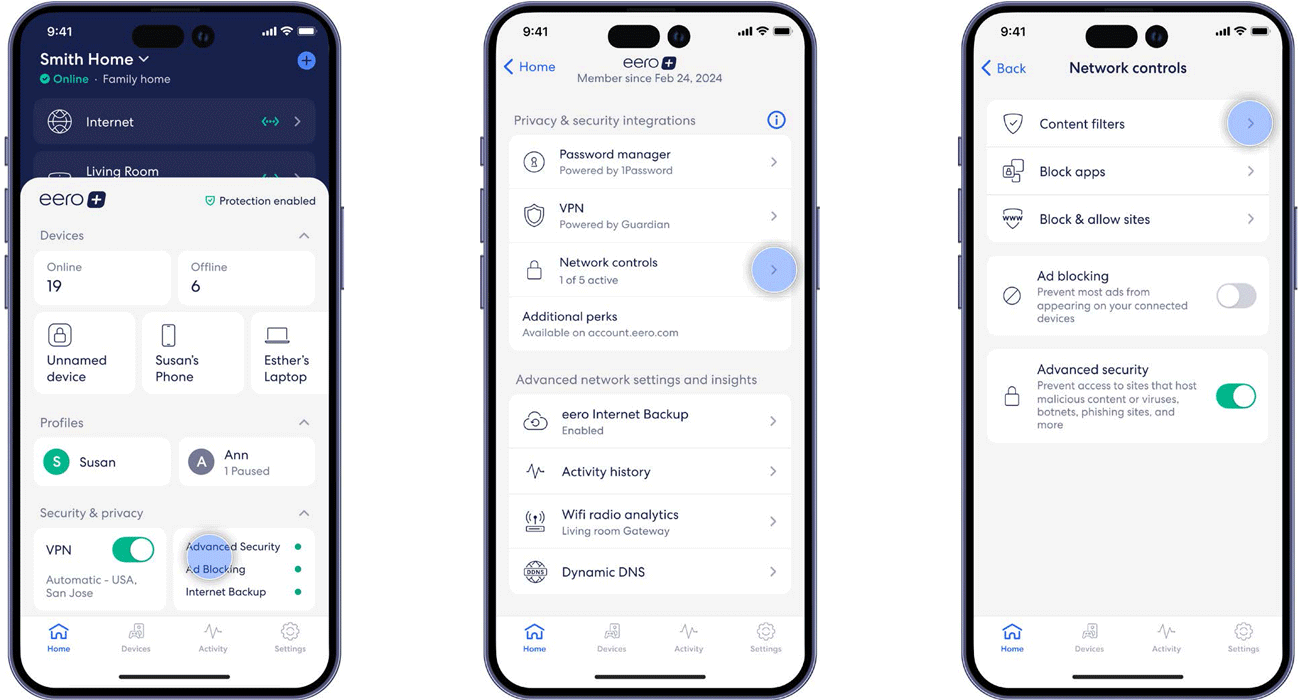
- Select the profile for which you want to set up Content Filters.
- Choose from the pre-set filter templates based on age ranges.
- Tap the desired filter template. Review options and tap Apply.
- To further customize your settings, toggle on/off individual content filter categories as desired.
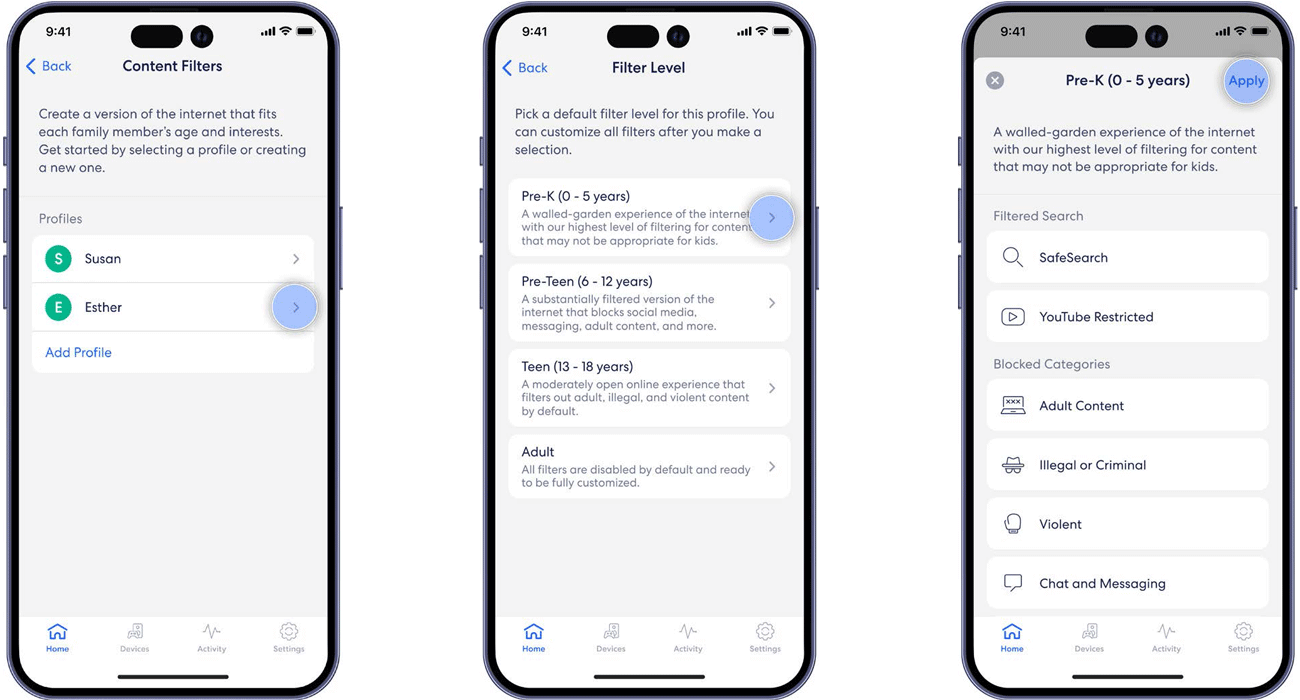
From a specific Profile page:
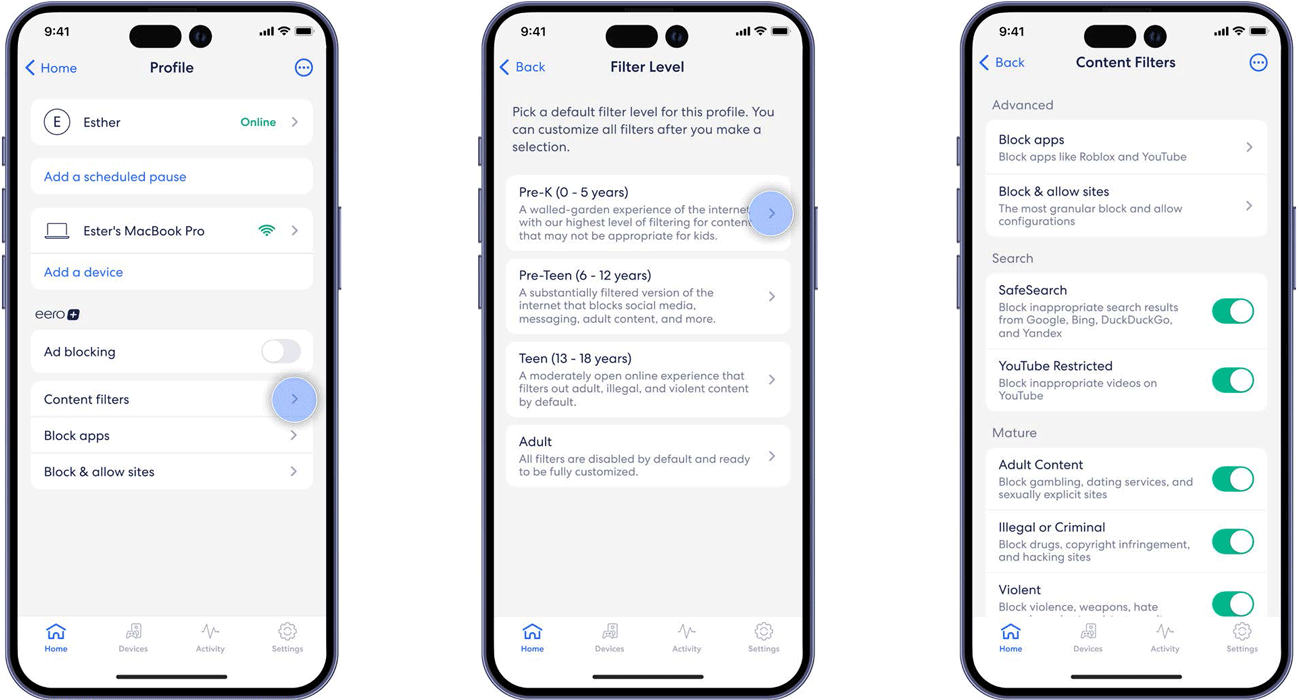
- Make sure you have a profile created, tap the profile and tap Content filters.
- Tap the preferred pre-set filter template and tap Apply.
- Toggle to configure the content filters based on your preferences.
Block access to apps and websites
While content filters can restrict certain types of content, parents can have more control over which websites and apps their children can access by blocking individual sites and apps.
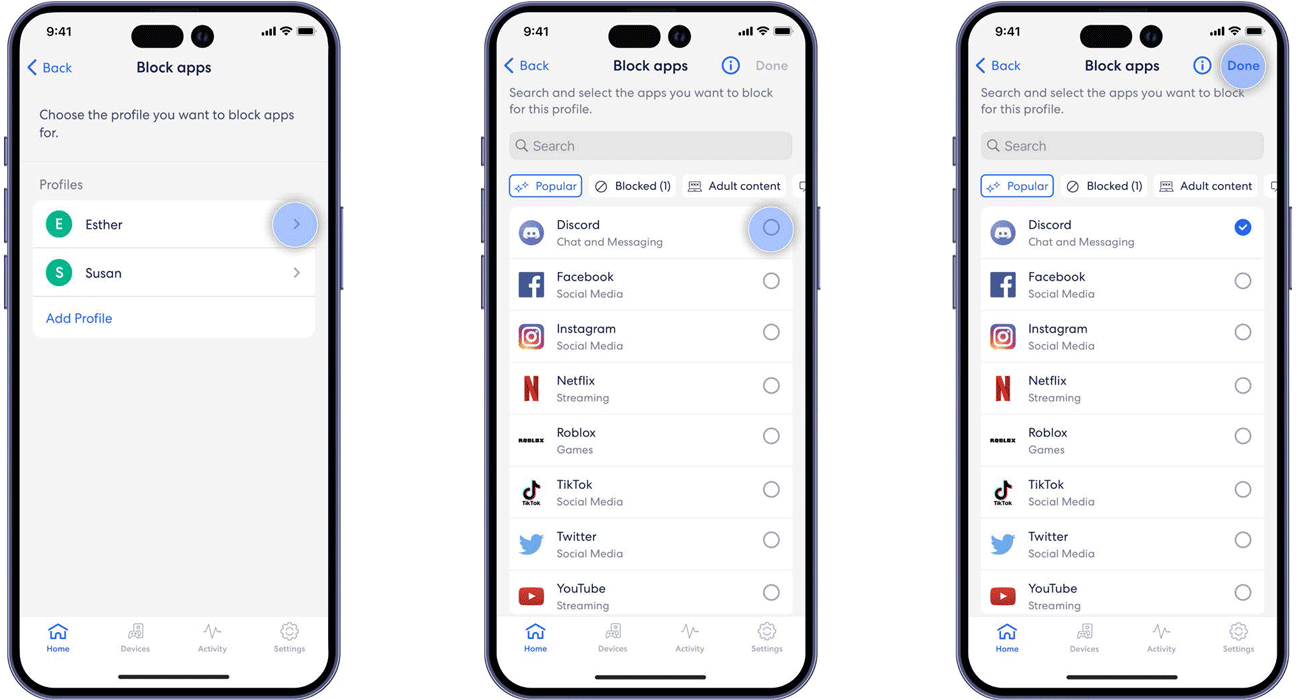
Blocking access to apps
You can disable apps from the homepage of your eero app:
- Under Security & Privacy, tap on Advanced Security.
- Tap the arrow to continue to Network Controls.
- Tap on Block apps.
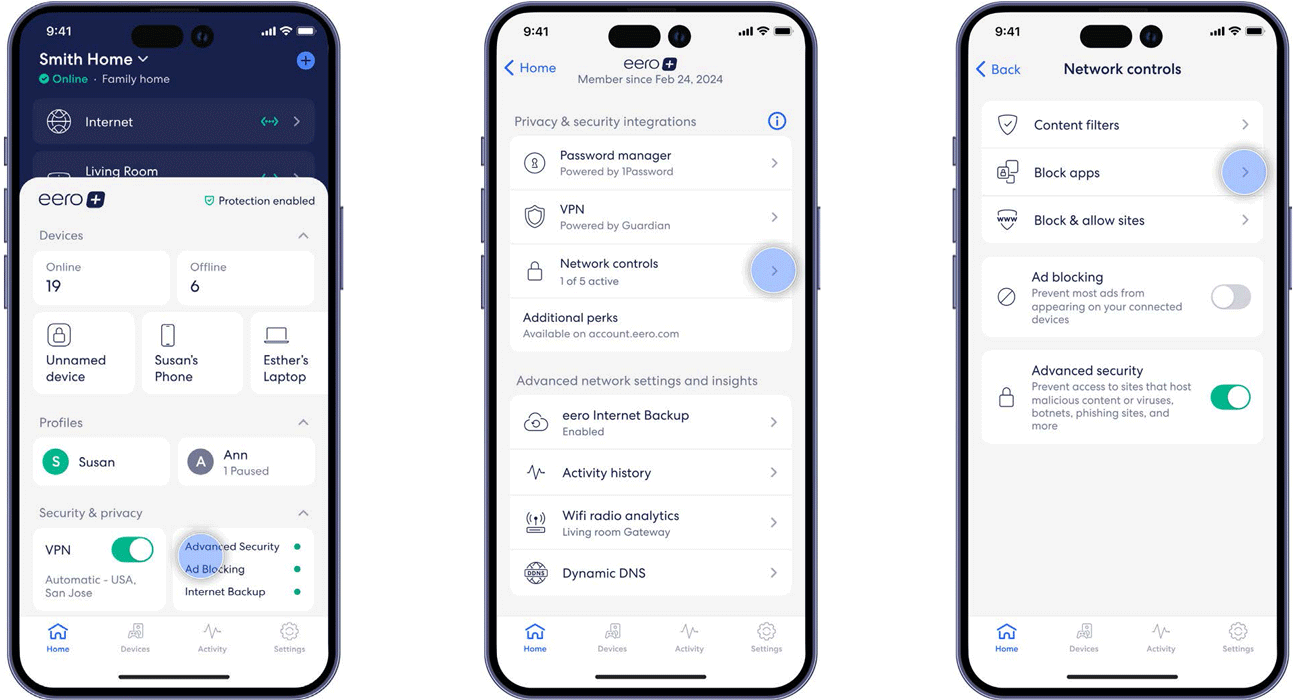
- Set controls in a specific profile by choosing which profile from the Profiles screen.
- Select or search for the apps you want to block.
- Tap Done at the top right corner to confirm selection.
Blocking and allowing access to websites
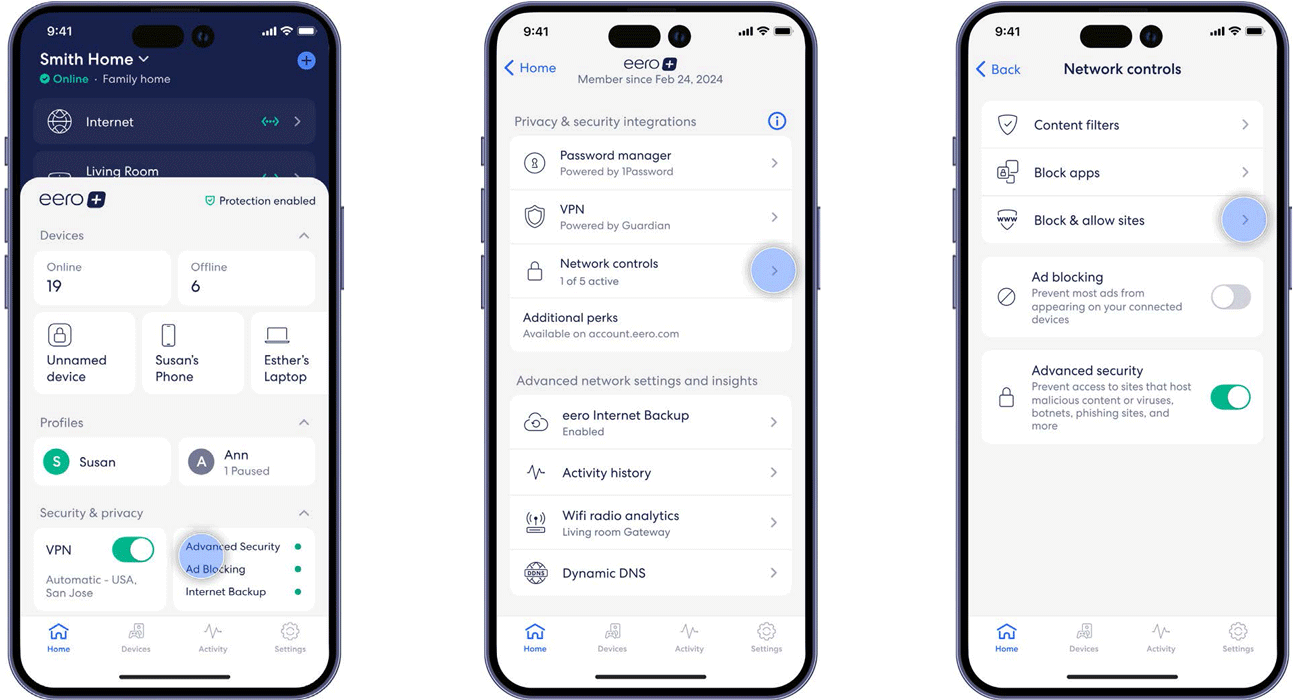
To block or allow a website on the eero app from the Home tab:
- Under Security & Privacy, tap on Advanced Security.
- Tap Network controls.
- Choose the Block & allow sites option.
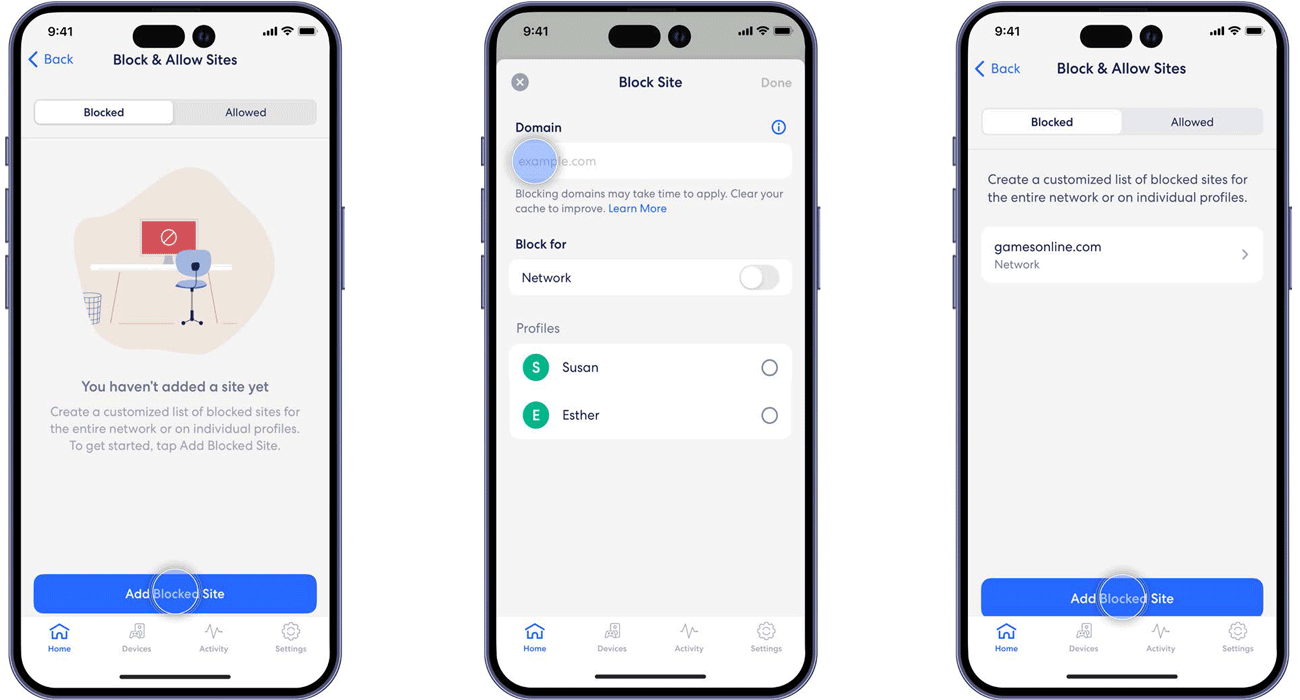
- Select Blocked or Allowed to add a website.
- Enter the domain name for the website you wish to disable or add.
- Choose the profile you want associated with the website, or choose the Network option to apply across all users connected to your eero router.
Mobile + Internet + TV
Switch to Astound
Get Astound Mobile, Internet and TV—and save on the best services available.
Troubleshooting eero parental controls
Even after setting the parental controls correctly, occasional issues may arise. Some of the common problems and their solutions are below.
Common issues and solutions
1. Connection problems
Some devices may stay accessible even under scheduled pauses or bypass the filters set. To mitigate this issue:
- Restart both the device and the eero router to reset the connection.
- Check if the device is connected to the internet using mobile data. If so, disable mobile data and reconnect the device to the WiFi to enforce the filters.
- Check if the device is using a VPN, which could bypass the content restrictions.
Additionally, the filtered device may experience slow internet or disconnect from the internet after setting parental controls. To solve this issue:
- Check the content filter settings to ensure you haven’t made the filters so restrictive that they block essential services.
- Temporarily disable and enable the ad-blocking feature to identify issues with website loading speed.
- Enable automatic updates on the eero router and device to prevent connection glitches.
2. Profile syncing issues
After configuring a profile, some devices connected to the network may not show in the profile.
- Remove the device from the network and reconnect it.
- Force close the eero app and reopen it.
- Ensure the eero app is up-to-date.
If the parental control settings take too long to sync in a profile.
- Restart the eero app and reset the parental control settings.
- Ensure the internet connection is stable; slow speeds can delay syncing the settings.
3. Filter adjustment tips
Sometimes, a blocked website or app can still be accessible. If so:
- Ensure the correct website’s URL or app name is in the block list.
- Clear the browser cache in the device to remove any of the website’s stored data.
If a website that is allowed is inaccessible:
- Check the blocked sites list and move it to the allowed sites.
- Check the content filter settings and adjust the categories accordingly.
- Test the website on multiple devices to confirm if it is a related issue.
Settings and configurations
1. Updating control settings
To update your eero’s parental control settings, open the eero mobile app and then:
- Navigate to the Discover tab and select eero Secure.
- Choose the profile for which you want to update the settings.
- Adjust the content filter settings or profile details as needed.
2. Managing multiple devices
To manage multiple devices with the eero parental controls, you must create different profiles for each household member and assign each personal device to each profile.
Group shared devices like smart TVs, gaming consoles and family computers under a general profile to avoid unintended restrictions.
3. System requirements
To configure and use the eero parental controls effectively, ensure you meet the following system requirements:
- You have an eero Secure or eero Plus subscription so you can access parental control features such as content filters, SafeSearch and advanced security features.
- Your eero router’s firmware is up-to-date.
- The devices you want to enforce the parental control settings on are connected to the mesh WiFi system.
- You have the latest eero mobile app to configure the parental control settings.
- You have a stable internet connection to access the settings.
Frequently asked questions
How do eero parental controls work?
eero parental controls work by letting you manage and monitor internet usage across your home network through the eero mobile app. Using features available with eero Secure or eero Plus, you can:
- Create family profiles and assign devices to each user for personalized settings
- Filter content by blocking specific websites or categories like adult content, social media or streaming platforms
- Set screen time limits and schedules, including pausing internet access during homework, dinner or bedtime
- Monitor activity with insights into websites visited, usage time and blocked attempts
- Enable advanced protection like real-time threat blocking and ad blocking for safer browsing
These controls apply at the network level, meaning all devices connected to your eero WiFi can be managed centrally.
Which devices are compatible with the eero parental control?
eero parental controls work with any device connected to your eero WiFi network. This includes:
- Smartphones and tablets
- Laptops and desktop computers
- Smart TVs and streaming devices
- Gaming consoles
- Other connected home devices (IoT)
To apply parental controls, devices must be connected to the eero mesh network and assigned to a profile within the eero app. Additionally, you’ll need an active eero Secure or eero Plus subscription, updated firmware, and the latest version of the app for full functionality.
How do I disable eero’s content filter feature?
Go to each profile and toggle the categories off to disable the content filter for that profile.
What happens when a user tries to access a blocked website or app?
eero will redirect the user to the blocked.eero.com website, or they will see a generic blocked page.
What if the content filters are not blocking the correct website or app?
If the content filters do not block the correct app or website, check that the filter category is set correctly, as some websites fall under multiple categories. You can also manually add the website URL to the Blocked Sites list. Additionally, clearing the browser cache from the devices can remove saved data that can allow the blocked website to load.
Can I monitor content filters in the eero app?
Yes! eero Plus provides an Activity tab that tracks content filter insights. It includes daily, weekly and monthly summary reports of sites visited, blocked access attempts and browsing patterns.
How do I set up parental controls on eero?
To set up parental controls, open the eero app and create a profile for each family member. Assign their connected devices to the appropriate profile, then configure content filters, screen time limits and other restrictions according to your preferences.
Does eero have content filtering for parental controls?
Yes. eero offers content filtering through eero Secure and eero Plus. Parents can use age-based filter templates or manually block categories such as adult content, violence, social media, streaming services, games, shopping and chat or messaging.
Can I block specific websites and apps with eero parental controls?
Yes. Parents can block or allow individual websites and apps through the eero app. Website domains can be added to blocked or allowed lists, while supported apps can be selected or searched for and assigned to specific family profiles.
Can I set screen time limits with eero parental controls?
Yes. eero parental controls allow parents to manage screen time by setting scheduled pauses for specific profiles or devices. For example, parents can pause internet access during homework, dinner or bedtime.
Does eero parental control include SafeSearch and YouTube Restricted Mode?
Yes. eero content filtering can enable SafeSearch and YouTube Restricted Mode for devices associated with a profile, helping filter explicit or inappropriate content from search results and YouTube.
Can eero parental controls block malicious websites and online threats?
Yes. eero Secure and eero Plus provide real-time threat blocking that helps prevent access to known malicious websites and protects against threats such as phishing attacks, scams and malware. eero Plus also includes Malwarebytes for additional device-level protection.
How do I disable eero's content filter?
To disable content filtering, open the relevant profile in the eero app and toggle the individual content filter categories off. This allows parents to customize which types of content remain restricted.
What should I do if eero parental controls are not working correctly?
If parental controls are not working as expected, restart the affected device and eero router, make sure the device is connected to eero WiFi, check whether a VPN or mobile data connection is bypassing the restrictions, and confirm that the eero app and router firmware are up to date. You can also review the profile, blocked sites and content filter settings.
Related content

Why is cybersecurity awareness important?
In this article, we’ll explain what cybersecurity awareness is and how you can be more aware of your own cybersecurity risks.

How to secure your home WiFi
Discover essential tips for securing your home network from cyber-attacks. Learn about security solutions like network encryption, firewalls and many more.

How to monitor network traffic at home
Learn how to track network traffic and find potential threats. Follow our guide to keep your home network safe from cyberattacks.

Is eero Plus worth it?
Learn essential tips to safeguard your online identity. Explore how you can prevent online identity theft and keep your personal information secure.

How to secure your mobile phone from hackers
Looking to secure your mobile phone? Learn about the types of mobile security threats that exist and discover ways to secure your phone.

Identify & prevent social media impersonation
Social media impersonation is a growing concern in the digital world. Learn how to identify these threats and best practices for prevention.
Create the perfect bundle
Get the speed, WiFi, mobile and TV that’s just right for you.
*Internet speeds vary, not guaranteed. Certain equipment may be required to reach advertised speeds. ^^Available in select areas. DOCSIS 3.1 modem with 2.5GE physical LAN port is required for 1 Gigabit speeds and higher. See astound.com/yourspeed for why speeds may vary. To view Astound’s FCC Network Management Disclosure see astound.com/policies-disclaimers. Modem required for Internet service. No contract required. Subject to availability. Ltd-time offer; subj. to change. Internet pricing valid for 12 mos. Gig+ internet service price for life for add’l $5/mo. Excludes taxes, surcharges, & fees. Offer subj. to change. Pricing valid from start; subj. to change thereafter. Std. WiFi included. Whole Home WiFi included w/ 2 Gig+ svc; $10/mo for lower speeds or add’l devices. Regular rates apply after promotion ends. Price reflects autopay & e-bill discount for enrolling in autopay & e-bill with ACH. Valid email & enrollment required. Discount is applied within 3 bill cycles and ends if autopay or e-bill is canceled, services change, or the account is not in good standing. ^Ltd-time offer; subj. to change. Free mobile offer = 1 Unlimited line w/ monthly credit for 12 mos from activation. Std rates apply after promo or if qualifying svcs not maintained. Limit 1 free line/account; not valid on existing lines. Add’l lines avail. at extra cost. Astound Mobile req’s Astound Internet service for activation. Max 5 lines. Equip., intl./roaming charges, taxes, fees extra & may change. Astound not liable for svc disruptions or outages. Higher rate applies if Internet not maintained. Mobile svc only in Astound areas. Pricing subj. to change. Data may slow during congestion. After 20GB, Unlimited plans slow to 768 Kbps; 1.5GB/3GB plans capped. No rollover; add’l data $10/GB. Coverage varies. Some features may require specific plans. Mobile svc includes BIAS w/ data, voice, texts & SMS. Other restrictions may apply. See astound.com/mobile for details. A one-time activation fee of $14.99 (in addition to any installation fees) will be charged. WA RESIDENTS: unless otherwise specified, price does not include 2% Regulatory Administration Fee. Cust. responsible for any accrued charges. Subj. to credit check. Not all svcs/speeds avail. in all areas. 30-Day Money-Back Guarantee for new residential customers who cancel within 30 days of install. Max refund = 1 month’s recurring service & equip. fees. Refund issued within 60 days if all conditions met. Excludes usage-based fees. ©2026 Amazon.com, Inc. or its affiliates. eero and all related marks are trademarks of Amazon.com, Inc. or its affiliates. Amazon.com c/o eero LLC, 660 3rd St. San Francisco, CA. All svcs are governed by Astound Customer Terms & Conditions found at astound.com/policies-disclaimers. © 2026 Radiate HoldCo, LLC d/b/a Astound Broadband. All rights reserved.
Price for Life locks in your monthly service rate for as long as you maintain the same qualifying internet service without changes, downgrades, or disconnection. Additional fees, equipment charges, taxes, surcharges, and discounts are subject to change and are not guaranteed for life.
While we have made every attempt to ensure that the information contained in this site has been obtained from reliable sources, Astound is not responsible for any errors or omissions, or for the results obtained from the use of this information. All information in this site is provided “as is”, with no guarantee of completeness, accuracy, timeliness and without warranty of any kind, express or implied, including, but not limited to warranties of performance, merchantability and fitness for a particular purpose. Certain links in this site connect to other websites maintained by third parties over whom Astound has no control. Astound makes no representations as to the accuracy or any other aspect of information contained in other websites.
eero Plus is available for an additional $9.99/month and requires subscription to whole home WiFi powered by eero.