














eero network switch: Best Ethernet switch for eero

Using an Ethernet switch is the simplest way to expand your eero Mesh WiFi system network if you need additional Ethernet ports for your TVs, gaming consoles, computer or smart home devices. It lets you add extra ports without changing your current eero setup and helps improve stability for devices that need a consistent and fast connection. Most homes work well with a basic unmanaged Gigabit switch, while multi-Gigabit internet users may benefit from faster multi-Gigabit switches.
This article explains what Ethernet switches are, how to choose the right one for your eero mesh WiFi and how to set everything up for the best performance.
What you'll learn:
- Can you use a network switch with eero?
- How to choose the right eero network switch
- Best Ethernet switches for eero (top picks by use case)
- Best Ethernet switches for eero: Quick comparison table
- How to connect and test an eero network switch (step-by-step)
- Troubleshooting common mistakes with eero network switches
- Scenario-based recommendations for the best eero Ethernet switch
- Conclusion
- Frequently asked questions
- Looking for more topics?
FIBER-POWERED GIG INTERNET
Gig+ speeds, unbeatable value
Get Gig speeds up to 1500* Mbps starting at $60/mo on Astound’s ultra-reliable fiber-powered‡ network.
Can you use a network switch with eero?
Yes. If your home uses Astound’s eero Whole Home WiFi, you can connect an Ethernet switch to your eero system, with an unmanaged Gigabit switch being the best choice for most households. These switches are straightforward plug-and-play network devices that automatically forward traffic and negotiate speed for each port, ensuring they operate smoothly and are highly compatible with eero auto-configuration.
In contrast, managed switches offer advanced and customizable features such as VLANs, QoS and DHCP servers. However, these features can conflict with how eero configures your mesh WiFi network. Unless you need specific features, an unmanaged switch is the easiest and most reliable option.
Where does the switch go in my network?
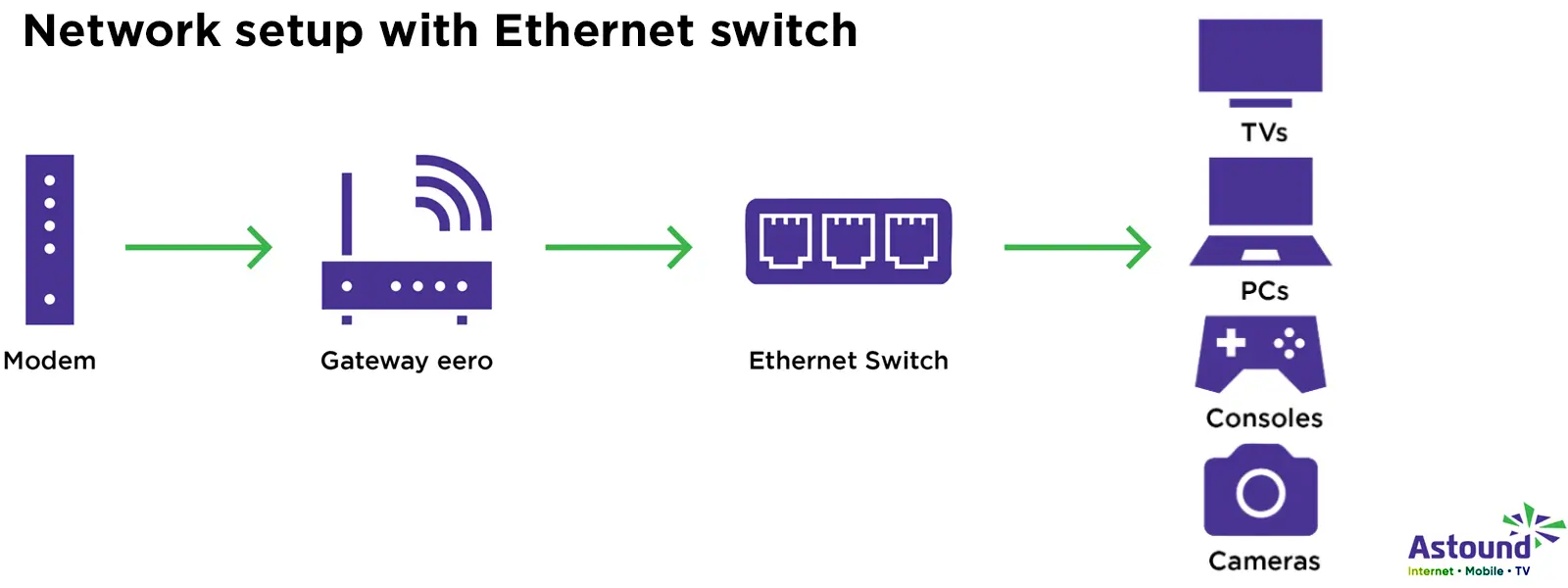
After setting up your eero mesh WiFi, the correct way to configure your switch is to connect it after the gateway eero, not between the modem and the eero. If the switch sits before the eero, the mesh can break because the eero handles routing, NAT and DHCP configurations for your entire network.
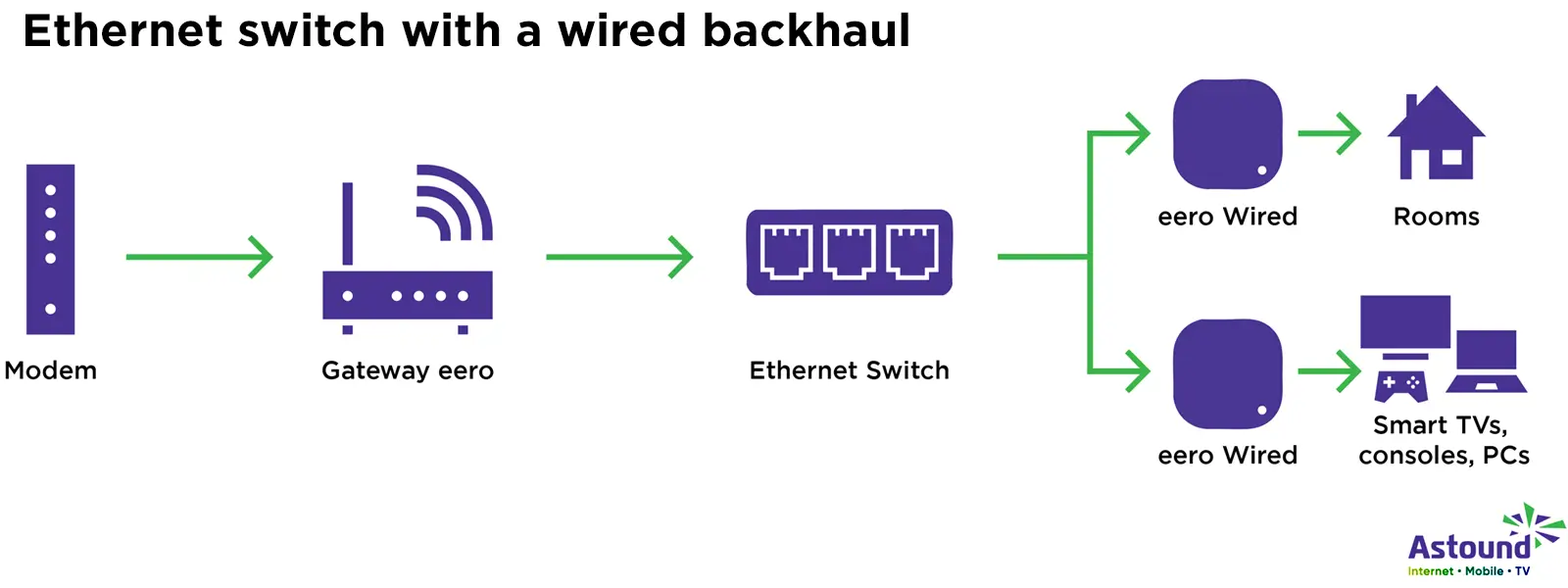
If you’re setting up a wired backhaul, you can also plug in additional eeros to the switch.
When do you actually need a switch?
You need an Ethernet switch if you want additional Ethernet ports to connect multiple devices, such as smart TVs, gaming consoles, laptops and smart home devices. Switches are essential for building wired backhaul, which gives your eero nodes a faster, more stable connection than relying on wireless connections.
Does using a switch slow down eero? No. A properly wired switch will not reduce your eero network speeds, as these depend on the switch’s port capacity. Gigabit switches handle up to 1 Gbps, while multi-Gig switches support 2.5 Gbps or higher.
Slowdowns can happen if you use older switches or damaged Ethernet cables or if the eero nodes remain wirelessly connected. Using a quality Gigabit or multi-Gig switch ensures consistent mesh performance throughout your home.
How to choose the right eero network switch
Choosing the best Ethernet switch for your mesh WiFi depends on the type of switch, the number of devices you want to connect, your internet plan’s speeds and whether you need features like multi-Gig speeds or Power over Ethernet (PoE) support. Here are the criteria to consider when choosing a switch that works well with your eero setup.
Unmanaged vs. managed switches
For most households, eero recommends using unmanaged switches, which are quick to set up and integrate easily with the system. They pass traffic automatically without manual configuration and negotiate the speed and duplex settings for each port to ensure consistent communication. Their simplicity makes them compatible with Astound’s eero models and avoids configuration conflicts.
Managed switches, on the other hand, offer advanced customizable configurations that can interfere with automatic eero configuration. For example, if a managed switch tries to assign IP addresses, it will conflict with the eero DHCP server causing devices, including eero units, to lose connectivity or fail to join the network. If you choose to use a managed switch, make sure to disable or carefully configure these features so they don’t override eero settings.
Port count: How many devices do you need to wire?
Your switch should have enough ports for all your wired devices, including any eero units you plan to connect for wired backhaul. The common network switch sizes include:
-
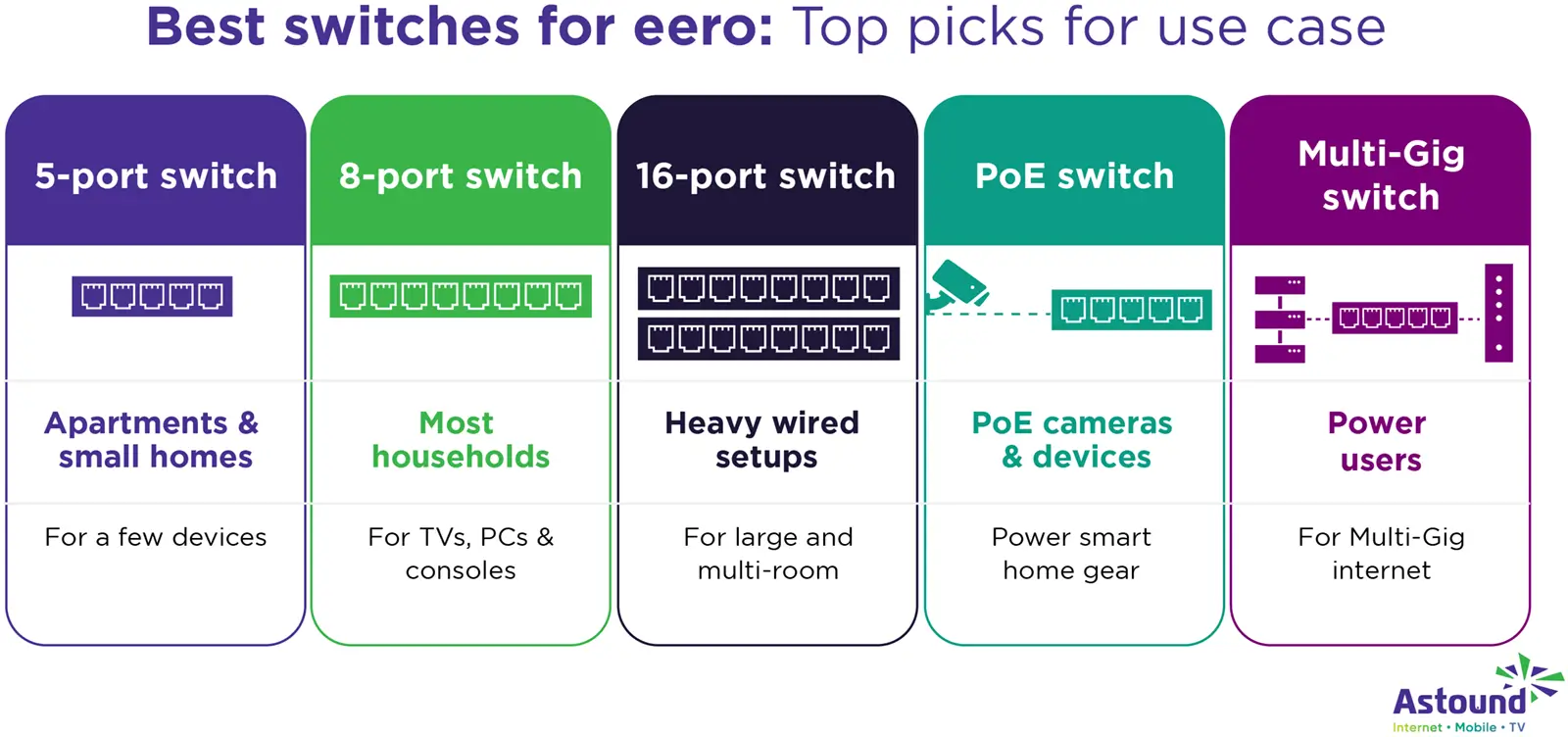
- 5-port switches: Ideal for apartments and small homes that have a few devices.
- 8-port switches: Ideal for most households, offering ports for the gateway eero, several wired devices and room for one or two wired eero nodes.
- 16-port switches: Suited for larger homes, home offices, gaming setups or home networks with multiple wired eero units.
If you expect your network to grow, choose a switch with more ports than you currently need. This prevents running out of space when adding new wired devices or additional eero nodes later.
Speed: Gigabit vs. multi-Gigabit
A Gigabit switch (1 Gbps) works well for most eero 6 or eero 6+ users and supports typical home internet plans up to 1 Gig.
Homes on multi-Gigabit internet plans, such as Astound’s 1.5 Gbps or 5 Gbps plans, may benefit from a 2.5 Gbps or 10 Gbps switch, respectively, especially when using higher-end models like the eero Pro 6E, eero 7 or eero Max 7. These switches unlock the multi-Gigabit Ethernet ports on the eero models to improve performance and the bandwidth necessary for demanding workloads and ensure your wired backhaul is never a bottleneck.
Is there a difference between my internet plan’s speed and the switch speeds? Yes. Internet speed affects your uploads and downloads, whereas switch speed affects how quickly devices communicate with each other on your home network. Even on a 1 Gig or lower internet plan, a multi-Gigabit switch can significantly speed up large file transfers, like backing up data to Network Attached Storage (NAS) drives, completely independent of your internet plan’s speeds.
PoE switches for cameras and outdoor devices
If you plan to connect smart devices like IP cameras, smart doorbells or outdoor devices that require PoE, a PoE switch simplifies their installation. A PoE switch delivers data and powers devices using an Ethernet cable itself without needing separate outlets. Standard eero units like eero 6, eero Pro 6E and eero Max 7 do not support PoE, so a PoE switch will function as a regular data switch for them.
However, eero PoE 6, eero PoE 7 and eero Outdoor 7 access points are designed to receive power over Ethernet and can be powered by compatible PoE switches. This approach reduces cable clutter and removes the need for separate wall adapters, especially for ceiling- or outdoor-mounted units.
For homes wanting a fully PoE-powered setup, the eero PoE Gateway is also an option. It acts both as a router and multi-port PoE switch, making it easier to power multiple eero PoE access points while still supporting standard wired devices and non-PoE eero units.
Wired backhaul and mixed mesh setup
One of the main advantages of adding an Ethernet network switch to your Astound eero network is the ability to create a wired backhaul. This means additional eero units connect directly to the switch using Ethernet instead of connecting wirelessly. A wired backhaul optimizes your WiFi’s performance by allowing each node to perform at its full Gigabit or multi-Gig capacity, which maintains consistent speeds, reduces latency and avoids wireless signal interference.
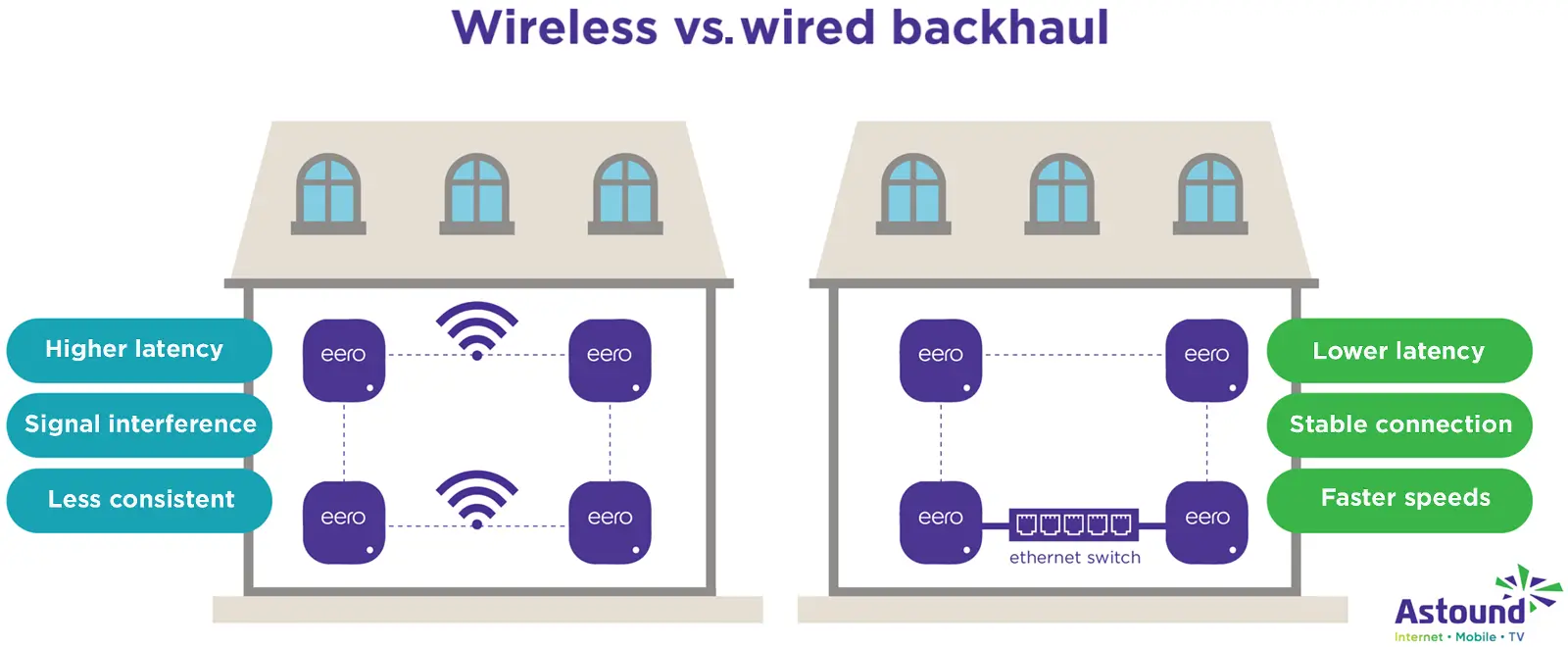
You can also use a mixed mesh that combines both wired and wireless connections. If only certain rooms have Ethernet or parts of the house are difficult to wire, plugging one or two eero units into the switch lets them run at their highest speeds, while the wireless nodes continue to operate normally. This hybrid approach delivers maximum performance where Ethernet is available and flexible coverage everywhere else.
Fanless desktop vs. rackmount switches
The physical design of a switch can influence noise, placement and ease of setup. Fanless desktop switches are silent and compact, making them ideal for living rooms, offices or rooms where quiet operation matters.
Rackmount switches are larger and often have active cooling, making them better suited for structured wiring panels, network closets or dedicated server rooms. They typically offer more ports, organized cable management and higher multi-Gigabit uplinks for advanced or high-demand setups.
For most households, however, a simple fanless desktop switch provides the right balance of performance and convenience.
Best Ethernet switches for eero (top picks by use case)
Below are eero-compatible switches that match the most common household setups.
Best 5-port switch for small homes and apartments
The TP‑Link TL‑SG105 and TRENDnet’s TEG‑S50g are excellent 5‑port switches for an apartment or small home with just a few wired devices. Both offer silent, energy-efficient operation and stable Gigabit speeds that pair well with eero 6 or eero 6+ systems.
-
- TP-Link TL-SG105
The TL-SG105 provides five auto-negotiating Gigabit ports and includes QoS and IGMP Snooping for traffic management. Its durable metal casing works for desktop or wall mounting and its fanless design keeps it silent. The switch uses Green Ethernet technology to reduce power consumption. - TRENDnet 5-Port Gigabit GREENnet Mini Switch (TEG-S50g)
The TRENDnet TEG-S50g delivers similar Gigabit speeds with a 10 Gbps switching capacity in full-duplex mode. It features a compact metal casing with a minimalist design suitable for tight desk setups or wall mounting and it uses GREENnet technology that adjusts power usage for energy savings when devices or Ethernet ports are not in use.
- TP-Link TL-SG105
Best 8-port switch for most eero users
For most households, the TP‑Link TL‑SG108 and the Netgear GS308 8-port Gigabit switches are ideal because they provide reliable Gigabit performance, easy plug-and-play setup and quiet operation for a noiseless environment. Each provides enough ports to support wired backhaul and several everyday devices.
- TP-Link TL-SG108
The TP‑Link T‑SG108 delivers eight auto-negotiating Gigabit ports in a sturdy metal casing that sits well on a desk or mounts to a wall. It includes QoS and IGMP Snooping for traffic management, a fanless design and Green Ethernet technology for energy efficiency. - Netgear GS308
The Netgear GS308 delivers similar dependable Gigabit speeds with a non-blocking switching architecture for full Gigabit throughput. Its compact metal design is durable, fanless and energy efficient, making it a solid choice for typical households.
Best 16-port switch for heavy wired setups
The TP‑Link TL‑SG116 and Netgear GS116 are excellent 16‑port Gigabit switches designed for homes with multiple wired devices, several Ethernet‑enabled rooms or multiple wired eero nodes.
- TP-Link TL-SG116
The TL‑SG116 provides 16 auto‑negotiating Gigabit ports in a durable metal chassis with fanless silent operation. Its Green Ethernet technology makes it energy efficient and its high switching capacity makes it ideal for heavy workloads like home offices, wired backhaul or multi‑device setups. - Netgear GS116
The GS116 delivers true Gigabit speeds with non‑blocking performance across all ports. It uses a solid metal housing, operates quietly without fans and offers reliable, energy-efficient operation suitable for desktops or wall‑mounted structured panels.
Best PoE switch for smart home gear and eero access points
- eero PoE Gateway
The eero PoE Gateway is the best choice when you want a unified, PoE‑powered eero mesh WiFi system. It combines routing and PoE switching in one device, with two 10 GbE uplinks and eight 2.5 GbE PoE+ ports for powering multiple eero PoE access points or outdoor installations. This makes it ideal for ceiling-mounted eero PoE 6, eero PoE 7 or eero Outdoor 7 units, structured wiring panels or professional-style whole‑home WiFi deployments. - TP-Link TL-SG1008P
For homes that primarily need to power PoE cameras, VoIP phones or access points, the TP‑Link TL‑SG1008P is a practical and budget-friendly option. It includes four PoE ports for powering devices directly over Ethernet and four additional Gigabit ports for wired devices or wired backhaul connections. Its silent, fanless design and plug‑and‑play setup make it easy to integrate alongside any standard eero gateway.
Best multi-Gig switch for eero Pro 6E, eero 7 and eero Max 7
Power users and homes with eero Pro 6E, eero 7 or eero Max 7 models benefit from multi‑Gig switches. These prevent Gigabit speed bottlenecks and enable high-performance devices, large file transfers and wired backhaul to operate at full multi‑Gig speeds.
- TP-Link TL-SG108-M2 (8-port 2.5GbE)
The TL-SG108-M2 provides eight 2.5GbE Ethernet ports in a compact, fanless metal chassis. Its 40 Gbps switching capacity supports consistent, high speed connections for NAS drives, servers, gaming PCs and WiFi 6/6E/7. It’s ideal for quiet, high-performance home setups with demanding workloads. - QNAP QSW‑2104‑2T (2-port 10GbE + 4-port 2.5GbE)
The QSW‑2104‑2T pairs two 10GbE and four 2.5GbE ports, with the 10GbE ports useful for high speed devices, such as the eero Max 7 gateway, while the 2.5 Gbps ports work well for eero 7 or eero Pro 6E nodes, gaming PCs and other compatible devices.
This switch is ideal for power users who frequently move large files or want a future-proof wired network designed for WiFi 6/WiFi 6E/WiFi 7 and next-generation multi‑Gigabit speeds.
Best Ethernet switches for eero: Quick comparison table
Use this quick comparison table to find the switch that fits your eero setup based on port count, speed, price and home network needs.
| Switch name | Ports | Speed | Best for | Price range |
|---|---|---|---|---|
| TP‑Link TL‑SG105 | 5 | 1 Gbps | Small homes and apartments with few wired devices. | $15 to $25 |
| TRENDnet TEG-S50g | 5 | 1 Gbps | Small homes and apartments with few wired devices. | $15 to $25 |
| TP-Link TL‑SG108 | 8 | 1 Gbps | Mid-sized households | $20 to $30 |
| Netgear GS308 | 8 | 1 Gbps | Mid-sized households | $20 to $30 |
| TP-Link TL‑SG116 | 16 | 1 Gbps | Large homes or multi-room Ethernet setups | $60 to $90 |
| Netgear GS116 | 16 | 1 Gbps | Large homes or multi-room Ethernet setups | $60 to $90 |
| TP-Link TL‑SG1008P | 8 (4 PoE + 4 non-POE) | 1 Gbps | PoE-powered devices, including access points and smart home devices | $45 to $70 |
| eero PoE Gateway | 10 (2 10GbE + 8 2.5GbE PoE+) | 2.5 Gbps and 10 Gbps | Full PoE-powered setup, access points and smart home devices | $399 |
| TP-Link TL‑SG108-M2 | 8 | 2.5 Gbps | Multi-Gigabit plans and power users | $120 to $150 |
| QNAP QSW‑2104-2T | 6 (2 10GbE + 4 2.5GbE) | 2.5 Gbps and 10 Gbps | Multi-Gigabit plans and power users | $120 to $150 |
|
Switch name
TP‑Link TL‑SG105 |
Ports
5 |
Speed
1 Gbps |
Best for
Small homes and apartments with few wired devices. |
Price range
$15 to $25 |
|
Switch name
TRENDnet TEG-S50g |
Ports
5 |
Speed
1 Gbps |
Best for
Small homes and apartments with few wired devices. |
Price range
$15 to $25 |
|
Switch name
TP-Link TL‑SG108 |
Ports
8 |
Speed
1 Gbps |
Best for
Mid-sized households |
Price range
$20 to $30 |
|
Switch name
Netgear GS308 |
Ports
8 |
Speed
1 Gbps |
Best for
Mid-sized households |
Price range
$20 to $30 |
|
Switch name
TP-Link TL‑SG116 |
Ports
16 |
Speed
1 Gbps |
Best for
Large homes or multi-room Ethernet setups |
Price range
$60 to $90 |
|
Switch name
Netgear GS116 |
Ports
16 |
Speed
1 Gbps |
Best for
Large homes or multi-room Ethernet setups |
Price range
$60 to $90 |
|
Switch name
TP-Link TL‑SG1008P |
Ports
8 (4 PoE + 4 non-POE) |
Speed
1 Gbps |
Best for
PoE-powered devices, including access points and smart home devices |
Price range
$45 to $70 |
|
Switch name
eero PoE Gateway |
Ports
10 (2 10GbE + 8 2.5GbE PoE+) |
Speed
2.5 Gbps and 10 Gbps |
Best for
Full PoE-powered setup, access points and smart home devices |
Price range
$399 |
|
Switch name
TP-Link TL‑SG108-M2 |
Ports
8 |
Speed
2.5 Gbps |
Best for
Multi-Gigabit plans and power users |
Price range
$120 to $150 |
|
Switch name
QNAP QSW‑2104-2T |
Ports
6 (2 10GbE + 4 2.5GbE) |
Speed
2.5 Gbps and
10 Gbps
|
Best for
Multi-Gigabit plans and power users |
Price range
$120 to $150 |
Fiber-powered internet
Why Fiber Internet works better
Astound’s fiber-powered internet provides consistent speeds throughout the day versus 5G Home Internet which is prone to intermittency.
How to connect and test an eero network switch (step-by-step)
Setting up an Ethernet switch with eero is simple once you understand where each device goes in the network chain. The steps below show how to wire your setup correctly for a reliable connection.
How to connect an Ethernet switch to eero
- Connect your modem to the gateway eero router
Start by connecting your modem or fiber ONT to the WAN port on your gateway eero. The gateway router must sit between the modem and the switch. - Connect the gateway eero to the switch
Use an Ethernet cable to connect the gateway eero LAN port to any port on the unmanaged switch. - Connect wired devices to the switch
Plug in your TV, gaming consoles, PCs or smart home devices to the remaining ports on the switch. The devices will receive internet access through the switch. - Connect additional eero units to the switch for a wired backhaul
Plug additional eero units into the switch to create a wired backhaul. eero will automatically detect the wired connection and switch to Ethernet instead of using a wireless connection between the nodes.
Can I connect multiple eeros to the same switch? Yes. As long as the switch is connected to the gateway eero in the network chain, you can wire multiple nodes to the same switch for a wired backhaul.
How to test connections inside the eero app
Once everything is wired, open the eero app on your phone to confirm if everything is set up correctly.
- Go to Activity > Devices to see which devices are connected via Ethernet.
You can view the Connection Type for each device. A device connected directly to an eero Ethernet port or to a switch will be listed as Wired. - Open the Network Map to check that wired eero nodes are detected correctly.
A wired eero node will state “Wired” or “Ethernet” as the connection type, while wirelessly connected eero nodes will show a signal strength icon.
Troubleshooting common mistakes with eero network switches
Even though most unmanaged switches work with eero, a few common mistakes can cause network problems. Here’s how to identify and fix them.
1. Connecting the switch to the modem before the eero gateway router
A modem → switch → eero layout will break your mesh because the switch cannot act as a router. This layout prevents eero from managing IP addresses, routing and NAT.
Since a switch cannot act as a router, the eero must sit directly behind the modem to properly manage your network.
2. Loops in the network
A loop happens when two ports on a switch or multiple switches connect to each other, creating a circular path for traffic. Connecting multiple cables between switches or eeros can cause a loop, which makes the network keep resetting itself. Loops can result in devices disconnecting or internet speeds slowing down.
Use a single Ethernet path between each device and avoid daisy-chaining a switch unnecessarily to prevent loops.
3. Double NAT issues
Some internet providers offer modems that combine modem and router functions. When you plug in your eero gateway to the modem, both devices try to handle routing, which results in double NAT. This issue can affect services that rely on precise port management, like gaming consoles, some VoIP/video calling and remote access to devices.
To fix this, put the modem gateway in bridge mode or call your provider and ask how to disable its routing features.
4. Using older 10/100 switches or damaged cables
Using older switches that max out at 100 Mbps can limit your speeds even if your eero supports Gigabit or multi-Gigabit connections. Damaged cables or mixing different categories (Cat5, Cat5e, Cat6) can also cause slowdowns or intermittent drops.
Ensure you use a modern Gigabit or multi-Gigabit switch and Cat5 or Cat6 cables that are in good condition for a reliable connection.
5. Using a managed switch with advanced features enabled
Managed switches often include advanced features like VLANs, spanning tree protocol (STP) or firewall rules that can block eero traffic or isolate nodes from the rest of the network.
If you must use a managed switch, run it in an unmanaged or basic mode. Disable the features unless you know how to configure them properly to work with the eero. For most households, unmanaged switches are the safer and easier choice.
Quick checklist when troubleshooting
If your eero network switch isn’t working, always check the list of basics first:
- Is the switch connected after the gateway eero?
- Are all Ethernet cables securely plugged in?
- Is the switch unmanaged or managed but running in “Basic” mode?
- Is the wired eero node shown as “Wired” in the eero app?
Addressing these common issues will ensure that your eero mesh and Ethernet switch function together to give you stable and consistent performance across your home.
WiFi that just works!
WiFi plans for any home
Tiny, large or somewhere in between; find WiFi coverage to fit any space. Blanket your entire home with a fast and ultra‑reliable connection.
Scenario-based recommendations for the best eero Ethernet switch
Best switch for apartments
For apartments or small living spaces with just a few wired devices, a compact 5-port Gigabit switch such as the TP-Link TL-SG105 or TRENDnet TEG‑S50g is the best fit. Both models are affordable, silent, energy-efficient and their design makes them easy to mount on walls or place near your gateway eero without taking up too much space.
Best switch for 3-4 bedroom houses
Most mid-sized homes would benefit from an 8-port switch like the TP-Link TL-SG108 or Netgear GS308. These switches offer enough ports for primary wired devices and wired backhaul while pairing well with eero 6, eero 6+ and eero Pro 6 systems. They’re the ideal fit for everyday households that want better coverage in multiple rooms without complicating their network setup.
Best switch for power users and multi-Gig internet
For power users with multi-Gig internet plans, a multi-Gig switch like the TP-Link TL-SG105-M2 (2.5GbE ports) or QNAP QSW series (2.5/10GbE ports) is the right choice. They help prevent Gigabit bottlenecks and unlock the faster Ethernet wired backhaul for users with eero Pro 6E, eero 7 or eero Max 7. They ensure low latency for online gaming, reduce lag when streaming 4K/8K content and high speed LAN transfers for NAS drives or large files.
Best switch for PoE-powered devices
For homes with PoE devices like cameras or access points, a PoE switch is the most convenient option. For smaller setups, the TP-Link TL-SG1008P is an affordable choice that can power a few PoE devices, including eero PoE 6, PoE 7 and Outdoor 7 access points, while also supporting standard wired devices as a normal switch. For whole-home PoE eero setups, the eero PoE Gateway is the better fit, as it combines routing and power over Ethernet support in one centralized unit.
Conclusion
Choosing the best Ethernet switch for your eero mesh WiFi system depends on the type of switch you want, the number of devices you plan to connect, your internet speeds and whether you need multi-Gigabit or PoE support capabilities.
Apartments and smaller homes with few devices can rely on a 5-port Gigabit switch, while most mid-size households benefit from an 8-port switch that provides a wired backhaul and can connect everyday devices. Larger homes with multiple wired rooms and devices may require a 16-port switch, while power users with multi-Gig internet will want a multi-Gig switch to prevent bottlenecks. Homes with PoE-powered devices like IP cameras, access points and outdoor devices will want a PoE switch that can supply both power and data.
With the right switch in your setup, your eero mesh WiFi network can provide faster wired backhaul, stable performance and improved whole-home coverage, especially when paired with fast, reliable internet from Astound.
Frequently asked questions
Do I need a specific type of Ethernet switch for eero?
eero recommends using unmanaged switches for most households because they are plug-and-play and don’t require manual configuration, which helps avoid conflicts with automatic eero network settings. If you use a managed switch, make sure to disable or carefully configure its features so they don’t override eero settings.
Can I use multiple eero units on the same Ethernet switch?
Yes. Connecting multiple eero units to the same switch creates a wired backhaul, which gives each node a faster and more stable connection than wireless. The switch simply passes traffic, while the eero system automatically detects the wired nodes and uses them for backhaul.
Will adding a switch slow down my eero WiFi network?
No. Adding a switch will not slow down your network as long as you use a good-quality Gigabit or multi-Gig switch and proper Ethernet cabling. Slowdowns can happen due to older 10/100 switches, damaged cables or eero nodes that remain wireless instead of wired.
Where should I place my Ethernet switch in an eero network?
Always place the Ethernet switch after the gateway eero in the network chain.
The correct order is Modem → Gateway eero → Switch → Wired devices / Wired eero nodes.
If a switch is placed before the gateway eero, the mesh may fail to form as the eero won’t manage the network’s routing, security and NAT functionalities.
Is there a difference between my internet plan’s speed and the switch speeds?
Yes. Your internet plan’s speed affects how quickly you can upload or download data from the internet, while your switch speeds determine how fast your devices inside the network communicate with each other. If you have a 300 Mbps plan, a multi-Gig (2.5G or 10G) switch will significantly speed up activities like large file transfers or streaming from home media servers, regardless of your internet speeds.
Related content

How many eeros do I need?
Discover how many eeros needed to enhance your mesh network. Learn how to assess your home's layout and internet usage to ensure seamless WiFi coverage.

Is eero good for gaming?
Break down the gaming capabilities of every eero model—to choose the ideal setup for your home size, internet speed and playstyle.

How to add eero to your existing network
With easy eero integration you can expand your WiFi coverage range, eliminate dead zones and improve your network stability and security.

How fast are eero routers
Explore our guide to learn more about max speeds and the true potential of eero router speed and optimize your home WiFi experience.

eero Pro 6 vs. eero 6e
Compare eero Pro 6 and eero 6E to find your perfect mesh WiFi system. Learn about performance, features and value to make an informed choice.

eero vs. TP-Link
Compare eero vs. TP-Link WiFi for speed, coverage, setup, ecosystem and value. Find the right mesh WiFi solution for your home.

eero vs. Netgear
Compare eero vs. Netgear mesh WiFi systems, including setup, performance, features and value. Plus: how Astound eero fits into the picture.
Create the perfect bundle
Get the speed, WiFi, mobile and TV that’s just right for you.
*Internet speeds vary, not guaranteed. Certain equipment may be required. See astound.com for details. Modem req’d. No contracts. Astound Internet is powered by fiber and connected to the premises via coaxial connection or fiber, where available. Delivery methods may vary by area. Subject to availability. Ltd-time offer; subj. to change without notice. Internet speeds under 1 Gig, pricing valid for 12 mos. Gig+ Internet speeds, pricing valid for 36 mos. Add’l fees apply for taxes, surcharges, & data overages, & are subj. to change. For details visit astound.com/fees. Enhanced WiFi or Whole Home WiFi included with Gig+; $5/mo for lower speeds or add’l devices. Regular rates apply after promo ends. Monthly price shown includes discount for enrolling in autopay & e-bill. $10 off/mo w/ bank acct autopay or $5 off/mo w/ credit/debit card autopay. Valid email & enrollment req’d. Must enroll w/in 30 days of order. Discount appears within 3 bill cycles, ends if autopay/e-bill is canceled, svcs change, or acct isn’t in good standing. ^Astound Mobile req’s Astound Internet service for activation. Max 5 lines. Equip., intl./roaming charges, taxes, fees extra & may change. Astound not liable for svc disruptions or outages. Higher rate applies if Internet not maintained. Mobile svc only in Astound areas. Pricing subj. to change. Data may slow during congestion. After 20GB, Unlimited plans slow to 768 Kbps; 1.5GB/3GB plans capped. No rollover; add’l data $10/GB. Coverage varies. Some features may require specific plans. Mobile svc includes BIAS w/ data, voice, texts & SMS. Other restrictions may apply. See astound.com/mobile for details. Offer valid for new res. customers or former customers in good standing w/out Astound svc in past 60 days. Add’l svcs, equip, premiums & tiers extra & subject to add’l charge & reg. increases. $14.99 one-time activation fee (plus install) applies & may change. Taxes & surcharges extra & subj. to change. WA RESIDENTS: unless otherwise specified, price does not include 2% Regulatory Administration Fee. Cust. responsible for any accrued charges. Subj. to credit check. Not all svcs/speeds avail. in all areas. 30-Day Money-Back Guarantee for new residential customers who cancel within 30 days of install. Maximum refund is equal to one month’s monthly recurring service fee of services & equip. ordered & installed. Refund within 60 days after conditions are satisfied. Refund not applicable to usage-based fees. All svcs are governed by Astound Customer Terms & Conditions found at astound.com/policies-disclaimers. © 2026 Radiate HoldCo, LLC d/b/a Astound Broadband. All rights reserved.
While we have made every attempt to ensure that the information contained in this site has been obtained from reliable sources, Astound is not responsible for any errors or omissions, or for the results obtained from the use of this information. All information in this site is provided “as is”, with no guarantee of completeness, accuracy, timeliness and without warranty of any kind, express or implied, including, but not limited to warranties of performance, merchantability and fitness for a particular purpose. Certain links in this site connect to other websites maintained by third parties over whom Astound has no control. Astound makes no representations as to the accuracy or any other aspect of information contained in other websites.
eero Plus is available for an additional $9.99/month and requires subscription to whole home WiFi powered by eero.